Back to Blog
Protecting Your PDF Documents: A Complete Security Guide
Comprehensive PDF security practices - password protection, encryption levels, redaction techniques, and expert recommendations for keeping your documents safe.
PDF Tools TeamJanuary 6, 202614 min read
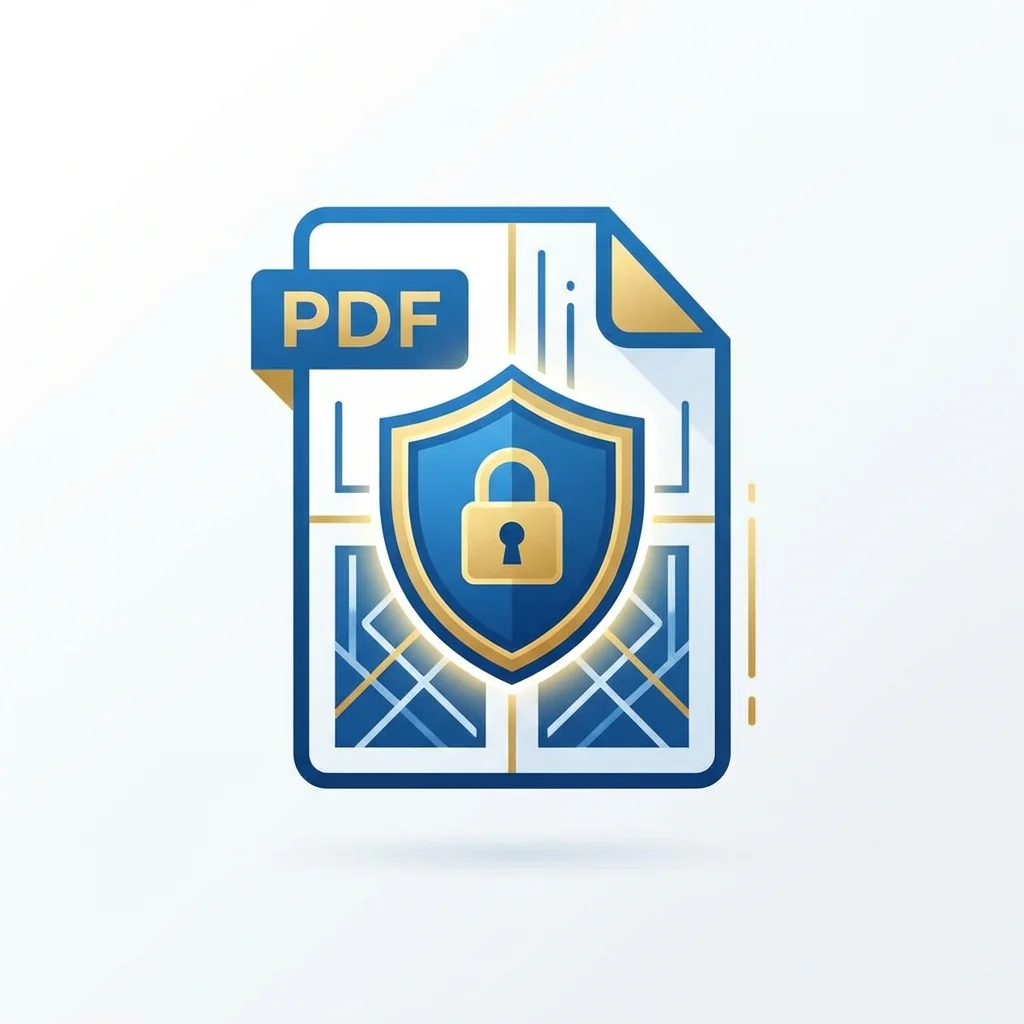
A friend once sent me a "confidential" PDF with a password. The password was the company name. Anyone who tried the obvious guess got in immediately. This is unfortunately common—people think adding any password means security. It does not. Let me share what I have learned about actually protecting PDF documents.
Understanding PDF Security Levels
PDF security is not a single feature—it is a spectrum of protection options. Understanding these levels is crucial for making informed decisions.
Security Options Comparison:
| Security Level | What It Does | Bypass Difficulty | Best For |
|---|---|---|---|
| Open Password | Prevents opening file | Very Hard | Confidential documents |
| Permission Password | Limits actions (print, copy) | Easy | Casual protection |
| 128-bit Encryption | Standard encryption | Hard | Business documents |
| 256-bit AES Encryption | Strong encryption | Very Hard | Sensitive data |
| Digital Signatures | Verifies authenticity | Cannot bypass | Legal documents |
The Two Types of PDF Passwords
Open Password (Document Open Password)
This prevents people from opening the file at all. This is real security—if someone does not have the password, they cannot see the content. It uses encryption to make the file unreadable without the correct key.
Permission Password (Owner Password)
This limits what people can do after opening—like preventing printing or copying. But here is the thing: these restrictions can be bypassed with freely available tools. They stop casual copying, not determined efforts.
Password Strength: What Actually Works
I use passwords that follow these criteria:
| Criteria | Example | Strength |
|---|---|---|
| Length (12+ characters) | SuperSecret123! | Good |
| Mixed case + numbers | My$ecret2026Pass | Better |
| Random characters | k7#mP9$xQ2!nR4 | Best |
| Dictionary words only | password123 | Weak |
| Personal information | JohnSmith1985 | Very Weak |
My Password Rules:
- At least 12 characters, preferably 16+
- Mix of uppercase, lowercase, numbers, and symbols
- Not related to the document content or sender
- Stored in a password manager, never in email or sticky notes
- Unique for each document when maximum security is needed
The Redaction Mistake Everyone Makes
Here is something scary: many people "redact" sensitive information by putting a black box over it. But the original text is often still there—you can select and copy it. I have seen social security numbers, salaries, and confidential terms exposed this way.
Correct vs. Incorrect Redaction:
| Method | Removes Data? | Secure? | Risk Level |
|---|---|---|---|
| Black rectangle overlay | No | No | Very High |
| White text | No | No | Very High |
| Crop tool | No | No | High |
| Proper redaction tool | Yes | Yes | Low |
| Re-typing document | Yes | Yes | Very Low |
My Complete Security Checklist
For sensitive documents, I follow this process:
Before Creating:
- Decide what needs protection and at what level
- Remove unnecessary sensitive information from source
- Use proper redaction if hiding parts of content
During Protection:
- Use strong encryption (256-bit AES when available)
- Create a strong, unique password
- Document who receives the password
When Sharing:
- Verify recipient identity before sending
- Send password through a different channel than the document
- Set expectations about further sharing
- Remove metadata that might reveal author or edit history
Encryption Levels Explained
| Encryption Type | Key Length | Security Level | Compatibility |
|---|---|---|---|
| RC4 40-bit | 40 bits | Obsolete | Very High |
| RC4 128-bit | 128 bits | Adequate | High |
| AES 128-bit | 128 bits | Good | Good |
| AES 256-bit | 256 bits | Excellent | Moderate |
I always recommend AES 256-bit encryption for anything truly sensitive. The slight compatibility trade-off is worth the security improvement.
Common Security Mistakes to Avoid
Mistake 1: Using Weak Passwords
Company names, dates, or obvious choices like "password123" provide zero protection against anyone who tries.
Mistake 2: Sending Password with Document
If someone intercepts your email, they get both the document and the key to open it. Always use a separate channel.
Mistake 3: Trusting Permission Restrictions
Remember: permission passwords only stop casual users. Anyone determined can bypass print and copy restrictions.
Mistake 4: Improper Redaction
Using drawing tools to cover text is not redaction. The underlying text remains accessible.
Mistake 5: Forgetting Metadata
PDFs can contain author names, editing history, software versions, and more. Clean this before sharing sensitive files.
When to Use Each Security Level
Not every document needs the same protection. Here is my guide for different scenarios:
| Document Type | Recommended Protection | Password Strength | Additional Measures |
|---|---|---|---|
| Internal memos | Permission password | Standard | None needed |
| Client contracts | Open password + AES 256 | Strong | Separate password channel |
| Financial records | Open password + AES 256 | Very strong | Limited distribution |
| Legal documents | Digital signature + encryption | Very strong | Audit trail |
| Medical records | Open password + AES 256 | Very strong | Compliance requirements |
Frequently Asked Questions (FAQ)
What is the difference between open password and permission password?
Open password prevents anyone from viewing the document without the password - this is true encryption. Permission password only restricts actions like printing or copying after the document is opened, and can be bypassed with certain tools.
How do I create a strong PDF password?
Use at least 12 characters with a mix of uppercase, lowercase, numbers, and symbols. Avoid dictionary words, personal information, or patterns. Use a password manager to generate and store strong passwords.
Is PDF security enough for GDPR compliance?
PDF security with strong encryption (AES 256-bit) and proper password management can be part of GDPR compliance, but you should also consider access controls, audit trails, and data processing agreements.
Can encrypted PDFs be hacked?
With AES 256-bit encryption and a strong password, breaking the encryption would take millions of years with current technology. However, weak passwords can be guessed quickly through dictionary attacks.
How do I remove password protection from my own PDF?
You can use our PDF unlock tool if you know the password. Simply upload the file, enter the password, and download the unprotected version.
What happens if I forget my PDF password?
If you used strong encryption, there is no way to recover the content without the password. This is why using a password manager is essential. For permission passwords (not open passwords), recovery tools may work.
Should I use the same password for all my PDFs?
No, for maximum security, each sensitive document should have a unique password. This way, if one password is compromised, other documents remain protected.
A Reality Check
No security is perfect. If you send someone a PDF, they can potentially share it despite restrictions. The goal is making unauthorized access harder and keeping honest people honest. For truly sensitive information, consider whether PDF is even the right format, or if access-controlled platforms might be better.
The Bottom Line
PDF security is about making informed choices. Know what each protection level does, use strong passwords, and think about who might want to access your documents and how determined they are. When in doubt, over-protect rather than under-protect—the inconvenience of a strong password is nothing compared to the consequences of a data breach.
---
🔒 Protect Your PDFs Now
PDF Protection Tool - Add passwords and encryption to your documents instantly!
Related tools:
- Unlock PDF - Remove passwords from your own files
- Sign PDF - Add digital signatures
- Watermark PDF - Add visible watermarks
PDF Tools Team
A specialized team in PDF tool development and educational content. We help you work with PDF files efficiently through free tools and comprehensive tutorials.
🚀 Try Our Free PDF Tools
29 completely free tools. No registration. 100% secure processing in your browser.