How to Compress PDF Files Without Losing Quality: Complete Expert Guide
Master PDF compression with our comprehensive 2024 guide - expert techniques, tools comparison, step-by-step instructions, and answers to all your questions about reducing file size.
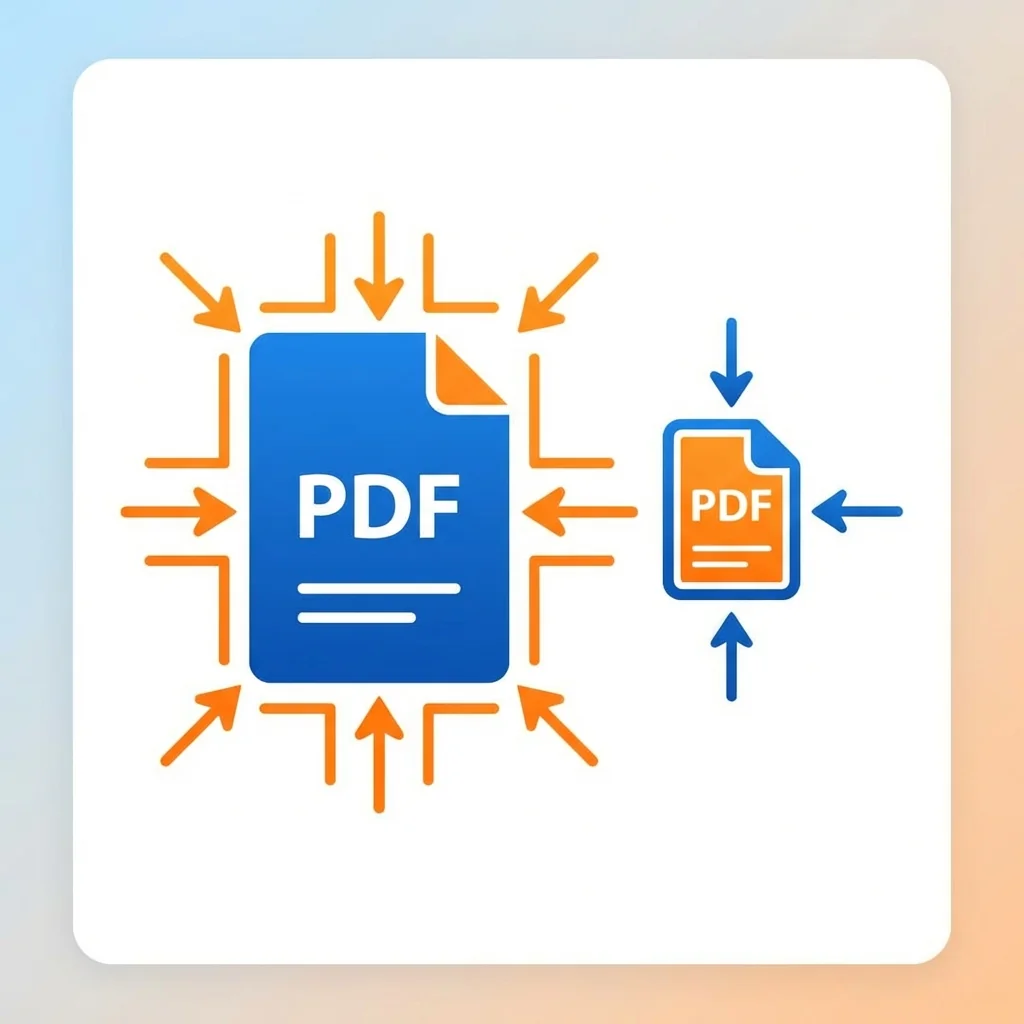
> 🚀 Quick Tool Access: Compress Your PDF Now - Reduce file size by up to 90% instantly, free and secure!
Understanding PDF File Size: The Fundamentals
Components That Affect PDF Size
| Component | Typical Size Impact | Compression Potential |
|---|---|---|
| High-resolution images | 5-50 MB each | Very High (up to 90%) |
| Embedded fonts | 0.5-3 MB each | Moderate (30-50%) |
| Vector graphics | 0.1-2 MB | Low (10-20%) |
| Text content | Minimal | Very Low |
| Metadata and annotations | Variable | Moderate |
| Embedded multimedia | 10-100+ MB | High |
The Real Problem with Large PDFs
Common Causes of Bloated PDFs:
- Unoptimized images: Photos embedded at original resolution without any preprocessing
- Multiple font versions: Different font weights and styles embedded separately instead of subset embedding
- Redundant metadata: Creation history, thumbnails, and editing data that accumulates over time
- Inefficient file structure: Poor optimization during PDF creation or multiple editing sessions
- Embedded attachments: Hidden files or multimedia content embedded within the PDF
- Transparency and layers: Complex design elements that are not flattened
Compression Methods Compared: Which One Should You Use?
| Method | Quality Loss | Size Reduction | Best For | Time Required |
|---|---|---|---|---|
| Online tools (recommended) | Minimal | 60-80% | Daily use, quick tasks | Seconds |
| Desktop software | Variable | 50-90% | Professional work, batch processing | Minutes |
| Re-exporting from source | None | 40-70% | Original document access | Variable |
| Print to PDF | Moderate | 50-70% | Quick fix, simple documents | Seconds |
| Specialized PDF editors | Minimal | 70-90% | Complete control over settings | Minutes |
Step-by-Step: How to Compress PDF Files Online
Step 1: Analyze the file first. Before compressing, I check what is making the file large. Is it images? Embedded fonts? If I created the PDF myself, I go back to the source document and optimize there first. This step alone can reduce file size by 50% before any compression.
Step 2: Upload to our compression tool. I navigate to our PDF compression tool and upload the file. The upload is secure and files are processed locally in your browser for privacy.
Step 3: Choose the right compression level. Our online tool offers three levels:
- Extreme: Maximum compression (up to 90% reduction), best for email attachments and web sharing where quality is less critical
- Recommended: Balanced approach (60-75% reduction), suitable for most business documents and presentations
- Minimum: Preserves highest quality (40-60% reduction), for documents that may be printed or viewed at high zoom
Step 4: Download and verify. I always open the compressed file and check critical elements like text clarity, image quality, and chart readability. If something looks off, I try a different compression level.
Real Numbers from My Experience
| Document Type | Original Size | After Compression | Reduction | Notes |
|---|---|---|---|---|
| Business report (20 pages) | 15-25 MB | 3-5 MB | ~75% | Mostly text with some charts |
| Photo-heavy presentation | 50-100 MB | 10-20 MB | ~80% | Image quality slightly reduced |
| Scanned documents | 20-40 MB | 5-10 MB | ~70% | OCR text preserved |
| Text-only contracts | 1-3 MB | 0.5-1.5 MB | ~50% | Already fairly optimized |
| Design portfolios | 100-200 MB | 20-40 MB | ~80% | Good for sharing, not printing |
Advanced Compression Techniques for Power Users
1. Pre-processing Images Before Creating PDF
2. Subset Font Embedding
3. Removing Hidden Content
4. Linearization (Fast Web View)
A Mistake I Made Early On (Learn from My Experience)
- Always keep the original file until the project is completely finished and approved
- Test print before deleting any high-stakes documents to catch quality issues
- Use cloud storage to maintain original versions with version history
- Name compressed files clearly by adding "-compressed" to the filename
When NOT to Compress: Knowing the Limits
- Will be professionally printed (brochures, posters, business cards, marketing materials)
- Contain important graphics, diagrams, or photos that need to stay pixel-perfect
- Serve as legal documents where every detail matters for authenticity
- Are archival copies meant for long-term storage and future reference
- Will be used as masters for creating other materials
- Contain small text or fine details that could become unreadable
Pro Tips for Better Compression Results
Before Creating the PDF:
- Resize images to the actual size they will appear in the document
- Use JPEG format for photos at 80-90% quality (good balance of size and quality)
- Use PNG only for graphics with transparency or text
- Avoid embedding unnecessary fonts - use system fonts when possible
- Flatten layers and remove hidden elements in design software
- Convert CMYK to RGB if the document is for screen viewing only
After Compression:
- Compare file size vs. quality trade-off by opening both versions side by side
- Test on different devices (mobile, desktop, tablet) to ensure readability
- Verify all hyperlinks still work correctly
- Check bookmarks, table of contents, and internal navigation
- Confirm form fields are still functional if applicable
- View at different zoom levels to check for artifacts
Frequently Asked Questions (FAQ)
How much can I compress a PDF file?
Will compression affect print quality?
Is online PDF compression safe?
Can I compress a password-protected PDF?
Why does my PDF get larger after compression?
How often should I compress PDFs?
The Bottom Line
🚀 Compress Your PDF Now
- Merge PDF - Combine multiple PDFs into one
- Split PDF - Extract pages from large files
- PDF to Word - Convert to editable documents
A specialized team in PDF tool development and educational content. We help you work with PDF files efficiently through free tools and comprehensive tutorials.
🚀 Try Our Free PDF Tools
29 completely free tools. No registration. 100% secure processing in your browser.