Back to Blog
Converting Images to PDF: Complete Guide
How to convert photos and screenshots to professional PDF documents - step by step with tips.
PDF Tools TeamDecember 28, 20258 min read
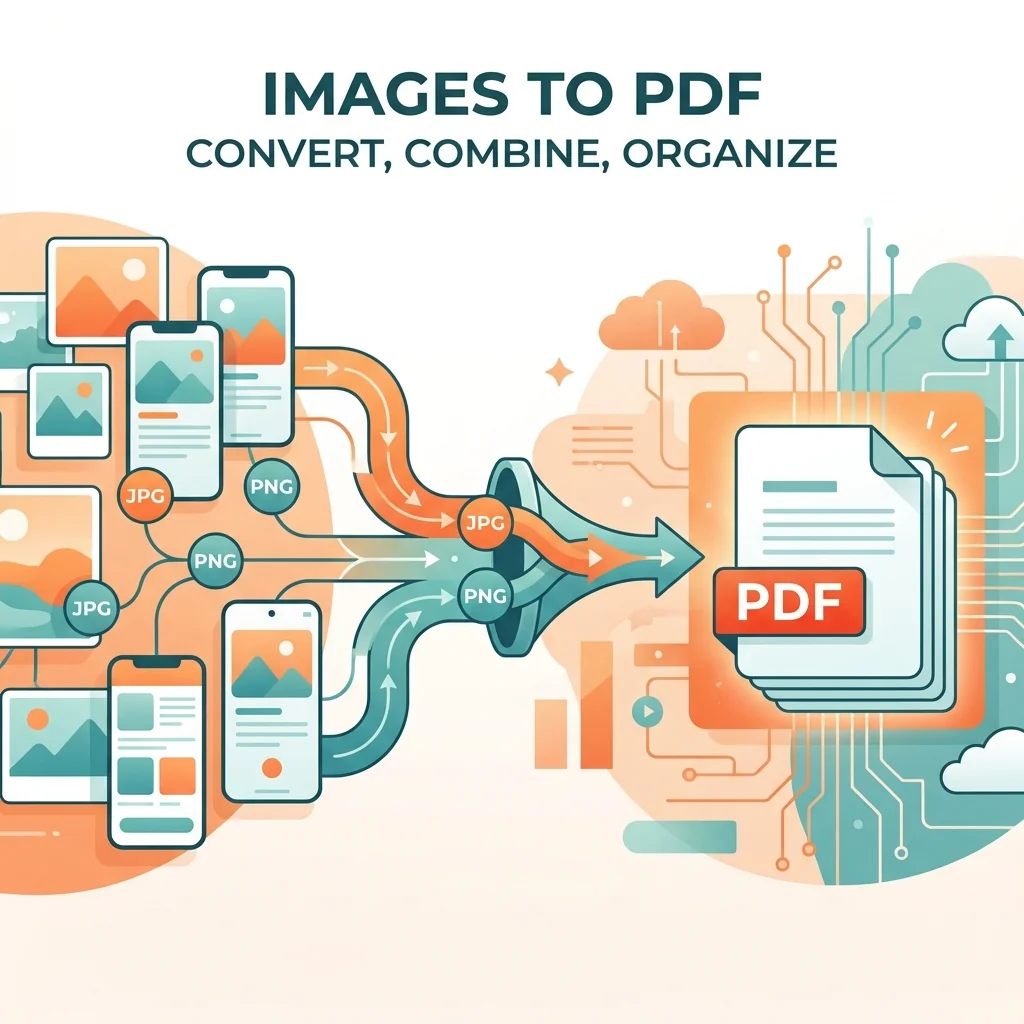
Last week I photographed whiteboard notes from a meeting. Sharing 12 separate JPG files was messy. Converting them to a single PDF made everything cleaner and easier to reference.
When to Convert Images to PDF
| Scenario | Benefit | Example |
|---|---|---|
| Multiple images | One organized file | Meeting notes |
| Scanned pages | Proper document | Contracts |
| Screenshots | Reference guide | Tutorials |
| Photos | Formal report | Inspections |
| Receipts | Organized records | Expense reports |
| ID documents | Secure backup | Passport copies |
Understanding Image to PDF Conversion
Converting images to PDF is not just about changing file formats. It is about creating professional, organized, and easily shareable documents from visual content. The PDF format is universally readable and maintains consistent appearance across all devices and platforms.
Why PDF is Better for Document Sharing
- Universal compatibility: Opens on any device without special software
- Consistent appearance: Looks the same everywhere
- Single file convenience: No need to send multiple attachments
- Professional presentation: Makes content look organized and official
- Easy printing: Consistent output on any printer
The Complete Process
Step-by-Step Guide:
- Select all the images you want to combine
- Arrange them in the right order by dragging and dropping
- Choose your preferred page size and orientation
- Adjust margins and settings if needed
- Convert to PDF
- Download your clean, single file
Image Quality Considerations
Resolution Guidelines
| Image Type | Recommended Resolution | Notes |
|---|---|---|
| Text documents | 300 DPI or higher | Ensures readable text |
| Photos | Original resolution | Maintains detail |
| Screenshots | 150+ DPI | Usually sufficient |
| Graphics | 200+ DPI | Balance quality and size |
The quality of your PDF depends directly on your original images. For text documents like scanned contracts, higher resolution produces clearer, more readable results. For photos, the original resolution is usually perfect.
File Size Management
Higher quality means larger files. Consider your needs:
- For email: Keep file size reasonable (under 10MB)
- For archival: Use maximum quality for best preservation
- For web sharing: Balance quality with loading speed
Page Size and Layout Options
Available Page Sizes
- A4: Standard international document size (210 x 297 mm)
- Letter: US standard size (8.5 x 11 inches)
- Legal: Extended US size for legal documents
- Fit to Image: Maintains original image dimensions
Orientation Choices
- Portrait: Standard vertical orientation for documents
- Landscape: Horizontal orientation for wide images
- Auto-detect: Let the tool choose based on image dimensions
Professional Use Cases
Business Documentation
Create professional reports by combining photos, charts, and diagrams into cohesive PDF documents.
Educational Materials
Teachers combine whiteboard photos, handouts, and diagrams into organized lesson materials.
Construction and Inspections
Site photos become professional inspection reports when combined into well-organized PDFs.
Legal and Compliance
Evidence photos, signed documents, and identification copies are combined for official records.
The Simple Process
- Select all the images you want to combine
- Arrange them in the right order
- Convert to PDF
- Download your clean, single file
Image Quality Considerations
The quality of your PDF depends on your original images. For text documents, higher resolution is better. For photos, the original resolution is usually fine.
Page Size Options
Our tool lets you choose page sizes: A4 for documents, Letter for US standard, or fit to image size.
Frequently Asked Questions (FAQ)
What image formats can I convert to PDF?
You can convert JPG, PNG, GIF, BMP, and most other common image formats to PDF.
Can I combine multiple images into one PDF?
Yes, you can select multiple images and they will be combined into a single PDF file, with each image on its own page.
Will converting images reduce quality?
No, our tool preserves the original image quality. The PDF will look exactly like your original images.
Can I rearrange the order of images?
Yes, after uploading you can drag and drop to arrange images in any order before converting.
What page size should I choose?
A4 is standard for documents. Letter for US. "Fit to image" keeps the original image dimensions.
Tips for Better Results
Make sure photos are well-lit and in focus. For documents, photograph straight-on, not at an angle. Crop unnecessary borders before converting.
Ready to convert your images? Try our free converter above - fast, easy, and preserves quality.
PDF Tools Team
A specialized team in PDF tool development and educational content. We help you work with PDF files efficiently through free tools and comprehensive tutorials.
🚀 Try Our Free PDF Tools
29 completely free tools. No registration. 100% secure processing in your browser.