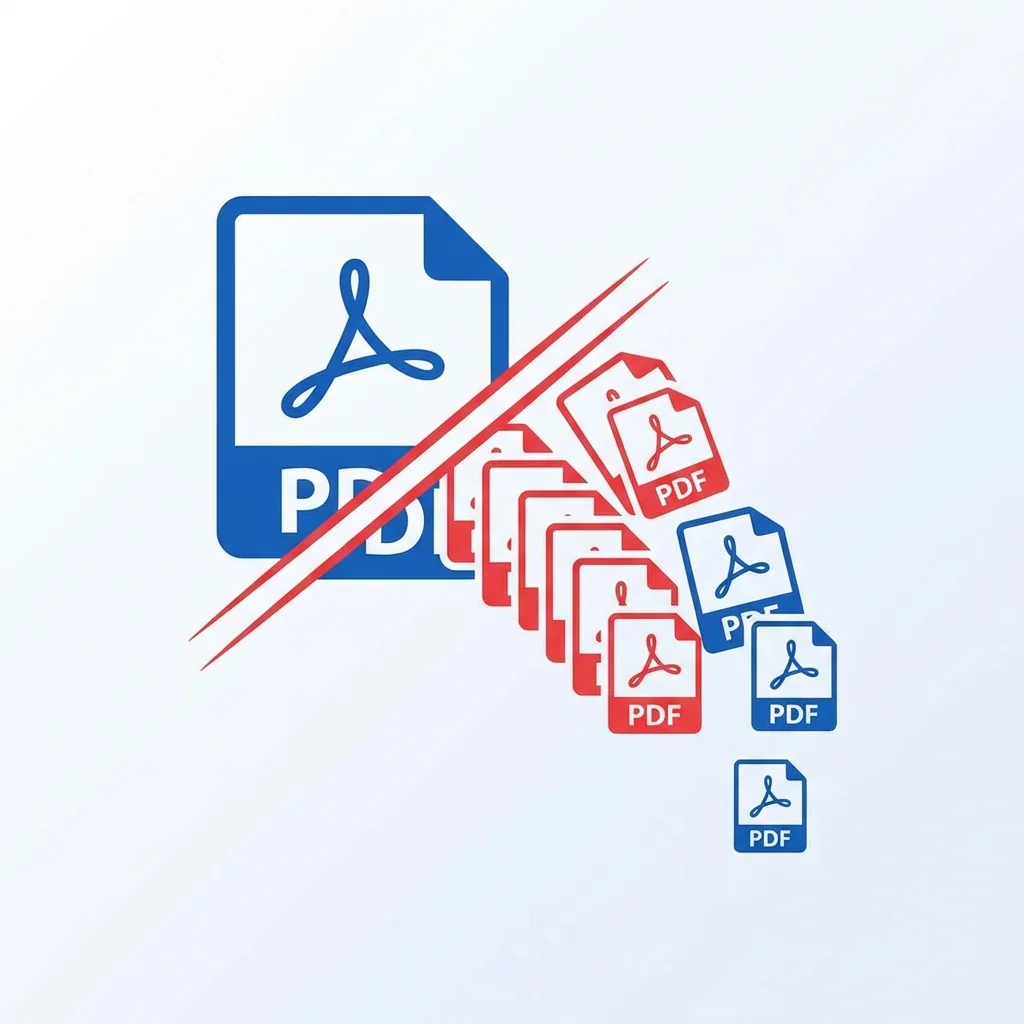
Someone once sent me a 200-page PDF when I only needed pages 45-52. Downloading, storing, and scrolling through that massive file was incredibly annoying and a complete waste of time. This situation happens far more often than it should, and mastering PDF splitting is the definitive solution. In this comprehensive guide, I will share everything you need to know about splitting PDFs effectively and efficiently.
> ✂️ Quick Tool Access: Split Your PDF Now - Extract specific pages instantly, free and secure!
Understanding Why PDF Splitting Matters
PDF splitting is not just about making files smaller - it is fundamentally about working smarter with documents. Large PDF files create multiple problems: they are slow to open, difficult to navigate, consume excessive storage, and can be frustrating to share via email due to size limits. Splitting solves all of these issues while giving you precise control over your document content.
When Splitting Makes Complete Sense
| Scenario | Primary Benefit | Secondary Benefit | Typical Use |
|---|
| Share specific pages | Smaller file size | Focused content | Client reports |
| Break into chapters | Organized structure | Easier navigation | Books, manuals |
| Extract individual items | Easy management | Quick access | Invoices, receipts |
| Remove sensitive pages | Privacy control | Compliance | Contracts, HR docs |
| Create preview samples | Marketing material | Lead generation | Proposals |
| Separate attachments | Clean organization | Better filing | Combined docs |
| Meeting distribution | Targeted sharing | Confidentiality | Board materials |
The Different Methods to Split PDFs
Understanding the various splitting methods available helps you choose the right approach for each situation. Here is a complete breakdown of your options:
Method 1: By Page Range
"Give me pages 10 to 25" - This is the most straightforward and commonly used method. Perfect for extracting a specific section, chapter, or segment from a larger document. When you know exactly which pages you need, this is your go-to option.
Best for: Extracting chapters, specific sections, or defined portions of a document.
Method 2: Every N Pages
Split a 100-page document into 10-page chunks automatically. This method is excellent for breaking down large manuals, textbooks, or comprehensive reports into manageable, digestible parts. It is systematic and consistent.
Best for: Creating uniform sections from large documents, serializing content for distribution.
Method 3: Individual Pages
Turn each page into its own separate file. This is incredibly useful for scanned receipts, invoices, or any document where each page needs individual processing, naming, or handling.
Best for: Receipts, invoices, certificates, individual forms.
Method 4: Specific Pages Only
"I need pages 1, 5, 12, and 28" - Cherry-pick exactly the non-consecutive pages you want when your needs do not follow a pattern. This gives you maximum flexibility.
Best for: Collecting specific items from a larger document, creating custom compilations.
Method 5: By File Size
Split to keep each output file under a certain size limit. This is particularly useful when dealing with email attachment limits, upload restrictions, or storage constraints.
Best for: Email attachments, system upload limits, storage management.
Method 6: By Bookmarks
Some PDFs have bookmarks that define logical sections. Splitting by bookmarks creates files that follow the document natural structure.
Best for: Books, manuals, and professionally structured documents.
My Professional Workflow for Splitting PDFs
After years of working with documents, here is the systematic workflow I follow for optimal results:
- 1Analyze the document first: Open the PDF and understand its structure. Use the table of contents or scroll through to identify the sections you need.
- 2Note the exact page numbers: Write down or remember the specific page numbers or ranges you require. Be precise here.
- 3Choose the appropriate splitting method: Based on your needs, select the most efficient method from the options above.
- 4Use our split tool: Upload your PDF and enter the page numbers or ranges using our intuitive interface.
- 5Download with descriptive naming: Immediately rename the output file with a clear, descriptive name while the content is fresh in your mind.
- 6Verify the result: Always open the split file and confirm it contains exactly what you expected.
- 7Organize and file: Move the file to its proper location in your file system.
- 8Consider deleting the original: If you only needed the extracted portion and have verified it is correct, delete the massive original file to save space.
Common Mistakes to Avoid
Even experienced users sometimes make these errors. Learn from them:
Mistake 1: Page Number Confusion
This is the biggest and most common mistake. Many people forget that page numbers in the splitting tool refer to the actual PDF page numbers, not the printed page numbers shown in the document content. A book might start "Page 1" on PDF page 15 after the cover, title page, and table of contents. Always scroll through and count the actual PDF pages.
Mistake 2: Not Verifying Results Before Deleting Originals
Never delete your original PDF until you have opened and thoroughly checked the split file. A simple typo in the page range can give you completely wrong pages, and discovering this after deleting the original is frustrating.
Mistake 3: Losing Track of Parts
When splitting into multiple files, poor naming leads to confusion later. Use clear, systematic naming: "Report-Part1-Executive-Summary.pdf", "Report-Part2-Market-Analysis.pdf", "Report-Part3-Financial-Data.pdf", and so on. Your future self will thank you.
Mistake 4: Forgetting About Document Structure
Some PDFs have interactive elements like form fields, hyperlinks, or bookmarks. Splitting may affect these elements. Test the split files to ensure functionality is preserved where needed.
Mistake 5: Not Considering Security
If the original PDF had security settings or passwords, remember that split files may not inherit these protections. Add security to the split files if the content is sensitive.
Advanced Splitting Techniques
Technique 1: Combining Split with Merge
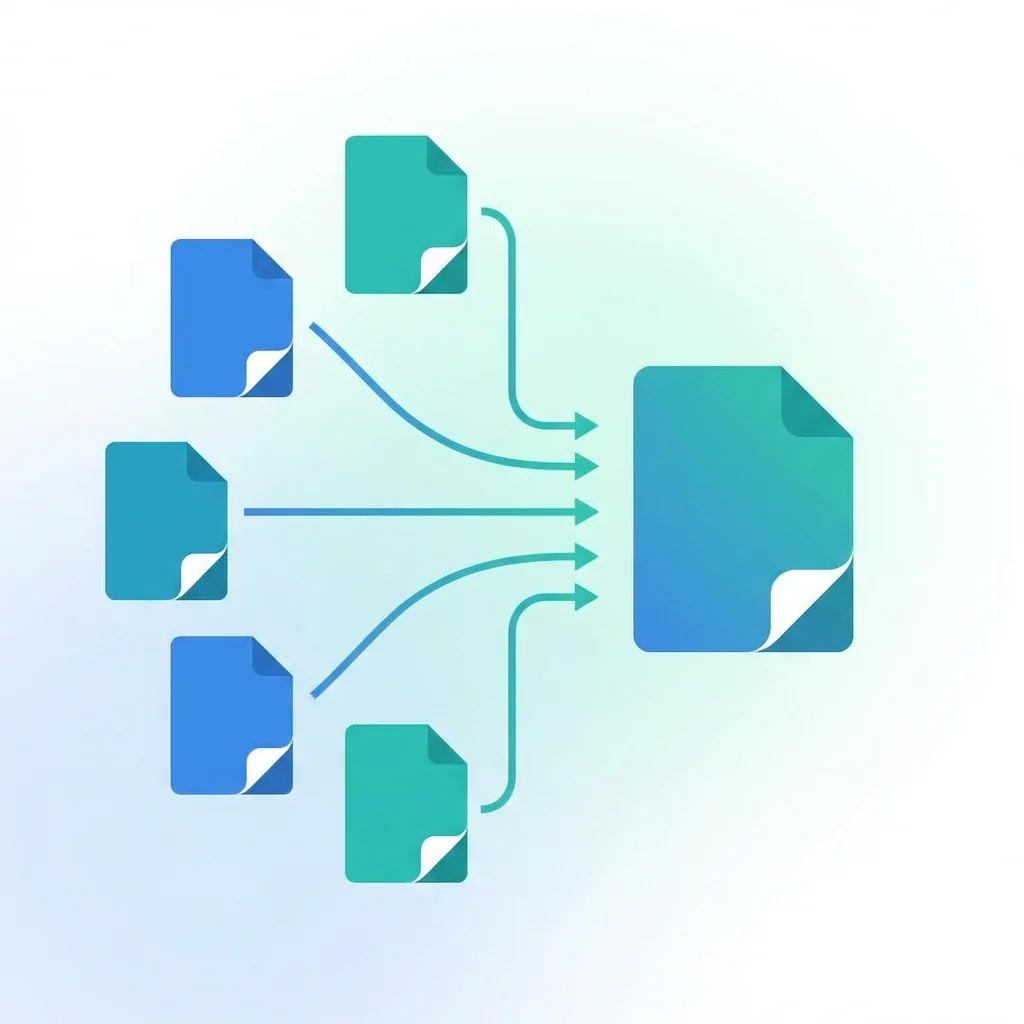
Sometimes you need pages from different positions assembled together. Split to extract the pages you need, then use our merge tool to combine them in your desired order. This gives you complete control over the final document.
Technique 2: Split for Different Audiences
A single comprehensive report can be split into different versions for different audiences. Executives get the summary section, technical teams get the detailed specifications, and legal gets the compliance sections.
Technique 3: Create Template-Based Splits
If you regularly receive similar documents - monthly reports, for example - create a note documenting which pages contain what. "Monthly Report: Pages 1-3 Executive Summary, Pages 4-15 Detailed Analysis, Pages 16-20 Appendices." This saves time on every future split.
Technique 4: Batch Processing Strategies
When dealing with many similar documents, develop a systematic approach. Process them in batches, use consistent naming conventions, and verify a sample before processing the entire batch.
Understanding Quality and File Size
A common question is whether splitting affects document quality. The short answer is no - splitting is a non-destructive operation. Pages are extracted without any compression, modification, or quality loss. The content remains exactly as it was in the original.
| Aspect | Original File | Split File | Notes |
|---|
| Text quality | 100% | 100% | Identical |
| Image quality | 100% | 100% | No compression |
| Fonts | Preserved | Preserved | Embedded fonts included |
| Hyperlinks | Present | Preserved | Within page links work |
| Annotations | Present | Preserved | Comments included |
Splitting Scanned PDFs
Scanned PDFs split exactly like regular PDFs because each page is essentially an image. The splitting process does not care whether the content is native text or scanned images - it treats pages as pages.
However, if your scanned PDF has been OCR-processed to add a searchable text layer, that layer is preserved in the split files. This is great news for searchability.
Frequently Asked Questions
Can I split a password-protected PDF?
Yes, but you will need to enter the correct password first. Our tool will prompt you to unlock the file before splitting can proceed. This is a security feature, not a limitation.
Will splitting affect the quality of my PDF?
No, splitting is a non-destructive operation. Pages are extracted without any compression or modification. Your split files will have identical quality to the original.
Can I split a scanned PDF?
Absolutely. Scanned PDFs split exactly like regular PDFs. Each page image is preserved precisely as it was. If the scanned PDF has an OCR layer, that is preserved too.
How do I split a PDF into individual pages?
Choose the "Split every 1 page" option, and each page will become its own separate file. This is perfect for documents where each page needs individual handling.
Can I split and merge in one operation?
These are separate operations. Split first to extract the pages you need, then use our merge tool to combine the extracted pages in your desired order. This two-step process gives you maximum flexibility.
Is there a limit to how many pages I can split?
Our tool handles PDFs of any size. For very large files (500+ pages), processing may take a bit longer, but there is no hard limit. We have successfully processed documents with thousands of pages.
What happens to bookmarks and links after splitting?
Internal bookmarks that point to pages within the split range are preserved. Links pointing to pages outside the split range will no longer function since those pages are not included.
Can I split a PDF on my phone or tablet?
Yes, our tool is fully responsive and works on mobile devices. The interface adapts to your screen size, making it easy to split PDFs on the go.
Time-Saving Tips and Best Practices
- 1Create a reference document: If you regularly need to split similar documents, maintain a reference sheet with common page ranges.
- 2Use descriptive file names: A few seconds spent on good naming saves minutes of searching later.
- 3Verify before sharing: Always check split files before sending to clients or colleagues.
- 4Keep originals until confirmed: Store originals in a backup location until you are certain the splits are correct.
- 5Organize as you go: File split documents immediately rather than letting them pile up in Downloads.
Real-World Use Cases
Case 1: Legal Document Management
A law firm receives a 500-page discovery document. They split it into sections by topic, making it easier for different team members to review their assigned portions.
Case 2: Educational Materials
A teacher receives an entire textbook as a PDF and needs to distribute specific chapters to students for weekly assignments. Splitting by chapter pages creates neat, focused readings.
Case 3: Business Reporting
A financial analyst receives a comprehensive annual report but needs only the financial statements section for their analysis. Extracting those specific pages creates a focused working document.
Conclusion
PDF splitting is a fundamental skill for anyone who works with documents regularly. Whether you are extracting chapters from a textbook, creating focused reports for different audiences, or simply making large files more manageable, mastering the various splitting methods saves significant time and frustration.
The key is choosing the right method for each situation, being precise about page numbers, and always verifying your results. With these skills, you will handle document management like a true professional.
---
✂️ Split Your PDF Now
PDF Split Tool - Extract pages, split by range, organize documents instantly!
Related tools:
- Merge PDF - Combine split files back together
PDF Tools Team
A specialized team in PDF tool development and educational content. We help you work with PDF files efficiently through free tools and comprehensive tutorials.
🚀 Try Our Free PDF Tools
29 completely free tools. No registration. 100% secure processing in your browser.