Back to Blog
Working with PDFs on Mobile: Essential Tips
Best practices for reading, editing, and sharing PDFs on your phone.
PDF Tools TeamDecember 18, 20257 min read
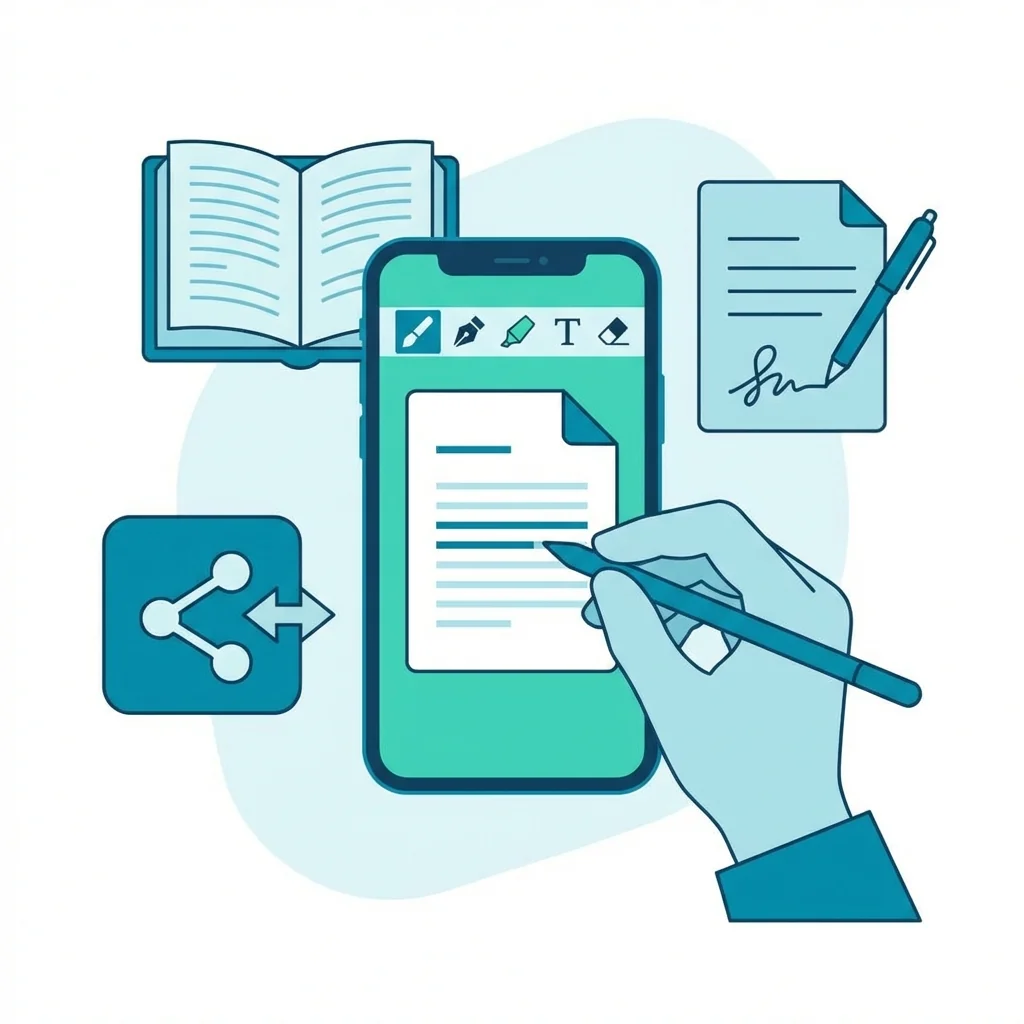
I do 50% of my PDF work on my phone now. Whether reviewing documents during my commute or signing contracts at a coffee shop, mobile PDF tools have become essential. The shift to mobile work is real, and understanding how to effectively work with PDFs on your phone can significantly boost your productivity.
The Mobile PDF Revolution
Just five years ago, working with PDFs on mobile was frustrating. Apps were slow, screens were too small, and editing was nearly impossible. Today, smartphones have larger screens, faster processors, and better apps. Mobile PDF work is not just possible - it is often preferable for certain tasks.
Why Mobile PDF Work Matters
| Scenario | Benefit | Time Saved |
|---|---|---|
| Sign contracts on the go | Instant response | Hours |
| Review documents during travel | Productive commute | Daily |
| Quick annotations in meetings | Real-time feedback | Minutes |
| Share files instantly | Immediate delivery | Variable |
Comprehensive Reading PDFs on Mobile
The built-in PDF readers on iOS and Android work fine for basic viewing. But for heavy use, dedicated apps offer significant advantages:
- Better navigation for long documents with table of contents support
- Night mode and sepia tones for comfortable extended reading
- Annotation tools for highlighting, marking up, and commenting on documents
- Better zoom controls and text reflow for readability
- Bookmarking and search functionality
- Split-screen support for referencing multiple documents
Detailed Mobile PDF Apps Comparison:
| Feature | Built-in Reader | Dedicated App | Premium App |
|---|---|---|---|
| Basic viewing | Yes | Yes | Yes |
| Annotations | Limited | Full | Advanced |
| Night mode | Not always | Yes | Customizable |
| Form filling | Basic | Advanced | Professional |
| Cloud sync | Limited | Full | Multi-platform |
| OCR | No | Some | Yes |
| Digital signatures | Basic | Yes | Verified |
Editing Capabilities on Mobile
While complex editing is still better on desktop, many tasks work excellently on mobile:
Tasks Well-Suited for Mobile:
- Adding digital signatures to contracts and agreements
- Highlighting important passages and sections
- Adding sticky note annotations and comments
- Filling out forms and applications
- Adding simple text boxes or stamps
- Rotating pages and basic organization
- Compressing files for sharing
Tasks Better Left for Desktop:
- Complex multi-page editing
- Precise element positioning
- Advanced form creation
- Bulk processing operations
- Detailed document comparison
Professional Mobile PDF Workflow Tips
Use Cloud Storage Effectively
Save PDFs to cloud services like Google Drive, iCloud, Dropbox, or OneDrive so you can access them from any device without emailing files to yourself. Set up automatic folder sync for important document categories.
Optimize File Size for Mobile
Large PDFs drain battery faster and load slowly on mobile connections. Compress files before transferring to your phone. Use our compression tool to reduce file sizes without noticeable quality loss.
Master the Share Sheet
The share menu on your phone is powerful. Learn the shortcuts to send PDFs anywhere - email, messaging apps, cloud storage, other PDF apps. Create shortcuts for frequent sharing destinations.
Set Up Quick Actions
Most mobile PDF apps support home screen widgets and quick actions. Set these up for common tasks like scanning documents, accessing recent files, or creating new annotations.
Use Document Scanning Features
Modern phones have excellent cameras. Use built-in scanning apps or PDF apps with scanning features to capture paper documents. The quality rivals dedicated scanners for most purposes.
Mobile Security Considerations
Password Protection
When working with sensitive PDFs on mobile, ensure your phone has strong security (biometrics, strong passcode). Use apps that support encrypted storage.
Network Security
Avoid opening sensitive PDFs on public WiFi. Use your cellular connection or a VPN for confidential documents.
App Permissions
Review what permissions your PDF apps request. Quality apps should not need access to contacts, microphone, or other unrelated features.
Battery and Performance Tips
Reduce Battery Drain
- Close PDF apps when not in use
- Use dark mode when available
- Disable auto-sync during heavy use
- Keep files local when possible rather than streaming
Improve Performance
- Clear app cache periodically
- Keep apps updated
- Close background apps when working with large files
- Use compressed versions of large files when possible
The Bottom Line
Mobile PDF work is not just possible—it is practical for many tasks. The key is knowing which tasks work well on mobile and optimizing your workflow accordingly. Try these tips and you will find your mobile productivity increases significantly.
PDF Tools Team
A specialized team in PDF tool development and educational content. We help you work with PDF files efficiently through free tools and comprehensive tutorials.
🚀 Try Our Free PDF Tools
29 completely free tools. No registration. 100% secure processing in your browser.