Convert PDF to Word Free Online Without Installing Software
Convert any PDF to editable Word document online for free. No Adobe Acrobat needed, no registration required. Keep original formatting intact.
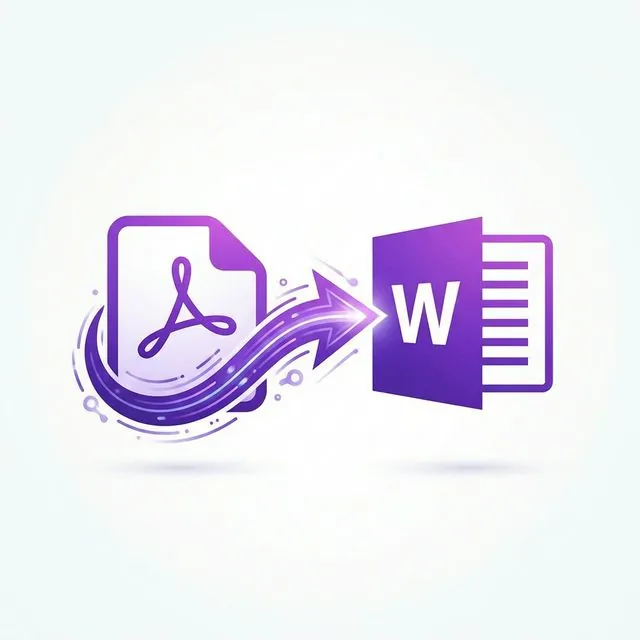
When Do You Need PDF to Word Conversion? Real-World Scenarios
Business and Professional Scenarios
- Editing received contracts: Your client sent a contract in PDF and you need to make changes to specific clauses or terms before signing
- Updating proposals: A colleague sent last quarter's proposal as a PDF, and you want to reuse the structure for a new client
- Modifying templates: Government forms and industry templates are often distributed as PDFs, but you need to customize them for your specific use
- Extracting data from reports: You need to pull specific tables, charts, or text from a PDF report into your own Word document
- Collaborative editing: Your team needs to make changes to a document, but the only available version is a PDF
Academic and Personal Scenarios
- Research papers: Extracting quotes, data tables, or citing passages from PDF research papers and journals
- Thesis editing: Your advisor sent feedback on a PDF version, and you need to incorporate changes in the Word original
- Translation work: Converting PDF documents to Word makes machine or manual translation significantly easier
- Updating old documents: The original Word file was lost or corrupted, but the PDF version survives
- Resume updating: Your resume was saved as PDF, and now you need to update it for a new job application
How to Convert PDF to Word Free Online — Complete Step-by-Step Guide
Step 1: Open Our Free PDF to Word Converter
Step 2: Upload Your PDF File
- Maximum file size: 200MB per file — much larger than most competing tools allow
- Supported PDFs: Text-based PDFs, image-based PDFs (with OCR), multi-page documents, password-free PDFs
- Upload speed: Files are uploaded over encrypted HTTPS connections for security
Step 3: Convert Your PDF
- Recognizes and preserves paragraph formatting, font styles, and spacing
- Detects table structures and recreates them as Word tables
- Extracts images at their original quality
- Maintains headings, bullet points, and numbered lists
- Preserves hyperlinks and cross-references where possible
Step 4: Download Your Word Document
What Gets Preserved During PDF to Word Conversion?
| Element | Preservation Quality | Notes |
|---|---|---|
| Regular body text | Excellent — 98%+ accuracy | Fonts matched to closest available |
| Headings & styles | Very good | Heading hierarchy preserved |
| Tables with borders | Very good | Cell structure accurately recreated |
| Tables without borders | Good | Detected by text alignment patterns |
| Embedded images | Excellent | Original resolution maintained |
| Bullet & numbered lists | Very good | List structure preserved |
| Page layout | Good | Single-column layouts convert best |
| Headers & footers | Good | Placed in Word header/footer areas |
| Fonts | Good | Closest matching fonts substituted |
| Hyperlinks | Very good | URL links preserved and clickable |
| Mathematical formulas | Fair | May need manual adjustment |
| Complex multi-column layouts | Fair | May require reformatting |
Text-Based PDFs vs. Scanned PDFs: Understanding the Difference
Text-Based (Digital) PDFs
Image-Based (Scanned) PDFs
How to Tell Which Type You Have
- If you can highlight individual words → It's a text-based PDF (great conversion results expected)
- If clicking selects the entire page as an image → It's a scanned/image PDF (OCR needed first)
Tips for Getting the Best PDF to Word Conversion Results
Tip 1: Start with a Clean PDF
Tip 2: Simple Layouts Convert Best
Tip 3: Use OCR for Scanned Documents
Tip 4: Check Font Availability
Tip 5: Always Review the Output
Tip 6: Keep the Original PDF
PDF to Word Conversion: Comparing Your Options
| Method | Cost | Conversion Quality | Speed | Ease of Use |
|---|---|---|---|---|
| Our free online tool | Free forever | Very good | Seconds | Very easy |
| Adobe Acrobat Pro DC | $240/year | Excellent | Seconds | Easy |
| Google Docs (open as) | Free | Medium | Seconds | Easy |
| Microsoft Word (built-in) | Office license required | Good | Seconds | Easy |
| Manual copy-paste | Free | Poor — loses formatting | Minutes to hours | Tedious |
| Retyping the entire document | Free | Depends on accuracy | Hours | Extremely slow |
Frequently Asked Questions About PDF to Word Conversion
Can I convert a scanned PDF to Word?
Will the converted Word file look exactly like the original PDF?
Is there a limit on how many files I can convert?
Can I convert password-protected PDFs?
What Word format is the output?
Can I convert only specific pages?
Does the converter work on mobile devices?
What's the maximum file size?
Common Conversion Problems and Solutions
Problem: Garbled or incorrect text after conversion
Cause: The PDF may use custom font encoding or embedded fonts that don't map to standard characters.
Solution: Try opening the PDF in a different PDF viewer, re-saving it, then converting again. If the issue persists, the PDF may need OCR processing.
Problem: Missing images in the Word output
Cause: Some PDFs embed images in ways that are difficult to extract.
Solution: Images are almost always recovered. If any are missing, you can take a screenshot from the PDF and manually insert it into the Word document.
Problem: Table formatting is broken
Cause: Complex tables with merged cells, nested tables, or irregular structures may not convert perfectly.
Solution: The table data will be present but may need manual reformatting in Word. Use Word's table tools to adjust borders, alignment, and cell sizing.
The Bottom Line: Convert PDF to Word Without the Hassle
📝 Convert Your PDF to Word Now
- OCR PDF — Extract text from scanned PDFs first
- Word to PDF — Convert Word back to PDF
- Unlock PDF — Remove passwords before converting
A specialized team in PDF tool development and educational content. We help you work with PDF files efficiently through free tools and comprehensive tutorials.
🚀 Try Our Free PDF Tools
29 completely free tools. No registration. 100% secure processing in your browser.