Back to Blog
Converting PDF to Excel: Maintain Perfect Formatting
Learn how to extract tables from PDFs and convert them to perfectly formatted Excel spreadsheets.
PDF Tools TeamJanuary 27, 20269 min read
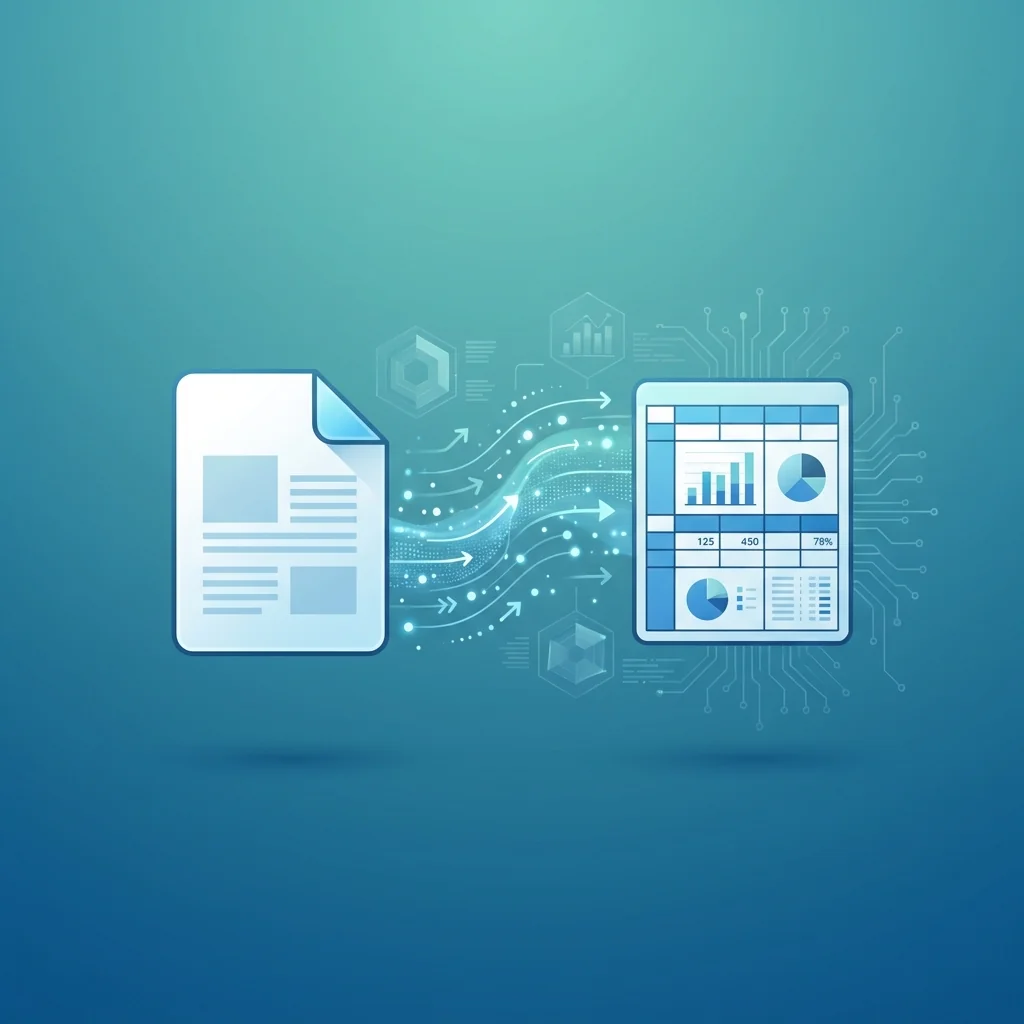
Data is the lifeblood of modern business, but all too often that data is trapped inside a static PDF document. Converting a PDF to Excel is one of the most common tasks for accountants, analysts, and researchers. The challenge isn't just moving the numbers; it's maintaining the correct columns, rows, and data types so you can actually use the information in formulas.
The Challenge of PDF Tables
PDFs are designed for viewing, not for data processing. When you try to copy and paste a table from a PDF into Excel, the formatting usually breaks, merging columns and losing alignment. A professional converter uses structural analysis to reconstruct the underlying table.
Why Convert to Excel?
- Data Analysis: Use pivot tables and charts to find trends.
- Automation: Link your data to other spreadsheets and tools.
- Formulas: Perform complex calculations that are impossible in PDF.
- Organization: Easily sort, filter, and clean your data sets.
Manual Entry vs. Online Conversion
| Feature | Manual Entry | Online Conversion |
|---|---|---|
| Accuracy | High (but human error) | Very High |
| Speed | Slow (hours) | Instant (seconds) |
| Cost | High (employee time) | Free/Low Cost |
| Scalability | Impossible for big data | Handles 100s of pages |
How to Convert PDF to Excel Correctly
Step-by-Step Guide:
- Upload your PDF file containing data tables.
- Our AI analyzes the table structure and cells.
- We map PDF coordinates to Excel columns and rows.
- Choose the output format (.xlsx or .csv).
- Download your perfectly formatted spreadsheet.
Pro Tips for Complex Tables
- Check for Scanned Content: If your PDF is a scan, ensure OCR is enabled.
- Clean Up Borders: Ensure table lines are clear for better recognition.
- Preview First: Always check the structural alignment before full processing.
- Export as XLSX: This format preserves the best structural integrity.
Frequently Asked Questions (FAQ)
Will my Excel formulas work after conversion?
The converter creates static values. You will need to re-add your formulas, but because the columns and rows are perfectly aligned, this process is much faster.
Can I convert a scanned PDF containing tables?
Yes, by using an integrated OCR tool, we can extract text from images and reconstruct the table structure into Excel.
Is there a limit on how many rows I can convert?
Our tool can handle large documents with thousands of rows across hundreds of pages seamlessly.
Will my data remain private during conversion?
Absolutely. We process files securely and delete them immediately after conversion to ensure your business data stays private.
Conclusion
Freeing your data from PDF shouldn't involve hours of manual re-typing. With precision conversion tools, you can transform static documents into dynamic assets in seconds. High-accuracy conversion saves time, reduces errors, and lets you focus on the actual analysis. Try our PDF to Excel converter today and see the difference.
PDF Tools Team
A specialized team in PDF tool development and educational content. We help you work with PDF files efficiently through free tools and comprehensive tutorials.
🚀 Try Our Free PDF Tools
29 completely free tools. No registration. 100% secure processing in your browser.