Convert PDF to HTML Online - Complete Guide to Web Publishing Your Documents
Learn how to convert PDF to HTML while preserving formatting. Perfect guide for publishers, marketers, and web developers who want SEO-friendly web content.
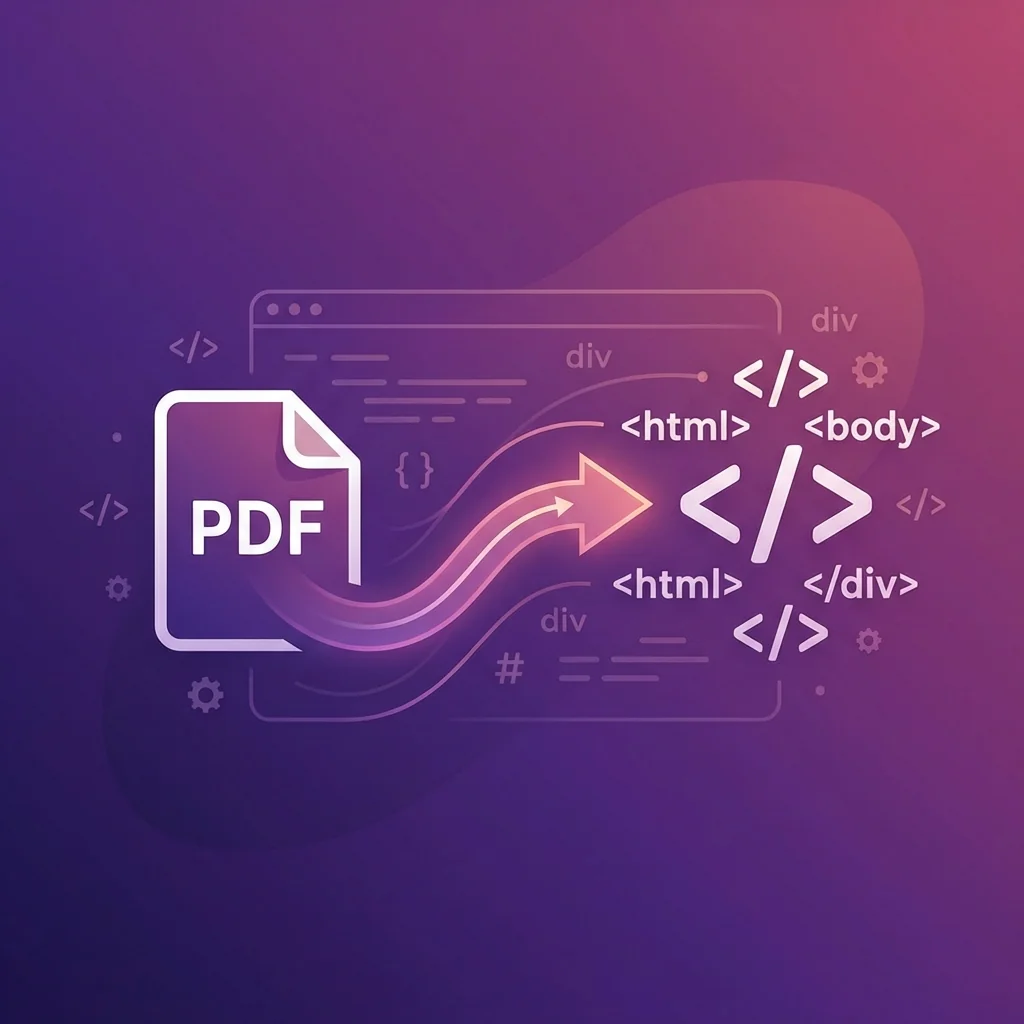
> 🌐 Quick Access: Convert PDF to HTML Now - Transform your documents for the web in seconds!
Understanding PDF vs HTML: Why Conversion Matters
PDF: Designed for Print Consistency
- Fixed layout: Every element has an exact position
- Print-ready: What you see is what prints
- Self-contained: Fonts and images are embedded
- Platform-independent: Looks identical on Mac, Windows, or Linux
The downside: These same features that make PDF great for printing make it challenging for web use:
- Search engines struggle to fully index PDF content
- Mobile users must zoom and scroll awkwardly
- Large PDFs load slowly on web pages
- Navigation within PDFs is limited
- Cannot easily integrate with website analytics
HTML: Built for the Web
- Responsive design: Adapts to any screen size
- SEO-friendly: Search engines understand HTML perfectly
- Fast loading: Content loads progressively
- Accessible: Screen readers and assistive technologies work seamlessly
- Interactive: Can include forms, animations, and dynamic content
- Analytics integration: Track every page view and user interaction
The Technical Process: How PDF to HTML Conversion Works
Step 1: Content Extraction
- Text content: Characters, words, and paragraphs
- Typography information: Font names, sizes, styles (bold, italic)
- Layout data: Position of each element on the page
- Images: Graphics and photographs embedded in the PDF
- Links: Hyperlinks and cross-references
- Tables: Row and column structure
Step 2: Structure Mapping
| PDF Element | HTML Equivalent |
|---|---|
| Headlines | `<h1>` through `<h6>` tags |
| Paragraphs | `<p>` tags |
| Bold text | `<strong>` or `<b>` tags |
| Italic text | `<em>` or `<i>` tags |
| Lists | `<ul>`, `<ol>`, `<li>` tags |
| Tables | `<table>`, `<tr>`, `<td>` tags |
| Images | `<img>` tags with extracted files |
| Links | `<a>` tags |
Step 3: CSS Generation
- Font families and sizes
- Colors and backgrounds
- Margins and padding
- Layout positioning
- Page breaks and structure
Step 4: Asset Extraction
- JPEG for photographs
- PNG for graphics with transparency
- SVG for vector graphics (when possible)
What Converts Well vs What Needs Manual Adjustment
Content That Converts Excellently
Text-heavy documents: Reports, articles, and documentation convert nearly perfectly. The text becomes actual HTML text, fully searchable and editable.
Simple formatting: Headers, paragraphs, bullet lists, and basic tables maintain their structure accurately.
Standard fonts: Common fonts like Arial, Times New Roman, and Helvetica convert without issues.
Hyperlinks: Internal and external links are preserved and remain clickable.
Content That Requires Adjustment
Complex multi-column layouts: Three or four column designs may need CSS refinement for proper web display.
Custom fonts: Unusual or proprietary fonts may require web font substitutes.
Precise positioning: Elements placed at exact pixel positions may shift slightly.
Interactive forms: Form fields convert but may need JavaScript functionality restored.
Background images with text overlay: These can be tricky and may require manual separation.
Step-by-Step: Converting Your PDF to HTML
Preparation Phase
1. Evaluate your PDF source
- Native PDF: Created from Word, InDesign, or similar software. Best conversion quality.
- Scanned PDF: Images of paper documents. Requires OCR processing first.
- Hybrid PDF: Mix of native and scanned content. May need both approaches.
2. Identify your conversion goals
- Do you need the exact visual layout preserved?
- Is text extraction for SEO the priority?
- Will the content be edited after conversion?
- What devices will display the final HTML?
3. Clean up the source PDF if possible
- Removing unnecessary elements
- Standardizing fonts
- Optimizing images before export
- Adding proper heading structure
Conversion Phase
4. Choose your conversion tool
- File size limits
- Privacy requirements (does the file upload to a server?)
- Output quality needed
- Batch processing needs
5. Configure conversion settings
- Single HTML file vs. multiple pages
- Embed CSS or separate stylesheet
- Image quality and format
- Preserve page breaks or continuous flow
6. Run the conversion
Post-Conversion Phase
7. Review the output
- Text accuracy (especially after OCR)
- Image quality and positioning
- Link functionality
- Layout on different screen sizes
8. Make necessary adjustments
- Fixing heading hierarchy (converting to proper H1, H2, H3 structure)
- Adding alt text to images for accessibility
- Adjusting CSS for mobile responsiveness
- Removing artifacts or unwanted elements
9. Optimize for web
- Compress images further if needed
- Minify CSS and HTML for faster loading
- Add meta tags for SEO
- Test page speed and accessibility
SEO Benefits of PDF to HTML Conversion
Full Content Indexing
- Complete text extraction without interpretation errors
- Understanding of document structure through heading tags
- Recognition of emphasis and importance through semantic markup
Optimized Meta Data
- Title tags specific to each page
- Meta descriptions for search result snippets
- Open Graph tags for social media sharing
- Schema.org structured data
Improved User Experience Signals
- Page load speed (especially on mobile)
- Mobile-friendliness (responsive design)
- Time on page (easier to read and navigate)
- Bounce rate (visitors stay longer on HTML pages)
Internal Linking Opportunities
- Link to related content naturally
- Receive internal links from other pages
- Contribute to site navigation
- Build topic clusters for topical authority
Accessibility Considerations
Screen Reader Compatibility
- Heading hierarchy aids navigation
- Alt text describes images
- Semantic markup conveys meaning
- Skip links allow bypassing repetitive content
Keyboard Navigation
- Tab through links and form elements
- Use arrow keys for scrolling
- Access all functionality without a mouse
Zoom and Text Resizing
Common Use Cases and Industries
Publishing and Media
- Convert magazine articles for web archives
- Publish research papers with full text search
- Make ebooks accessible as web content
Corporate Communications
- Transform annual reports into interactive web experiences
- Convert policy documents for employee intranets
- Publish press releases in web-native formats
Education
- Make course materials accessible online
- Convert textbook chapters for learning management systems
- Create searchable resource libraries
E-commerce and Marketing
- Turn product catalogs into browsable web pages
- Convert brochures into landing pages
- Repurpose white papers for content marketing
Government and Legal
- Make public documents accessible as required by law
- Convert legal briefs for online publication
- Archive historical documents in searchable formats
Frequently Asked Questions
Will my converted HTML look exactly like the original PDF?
Can I convert password-protected PDFs?
How do I handle scanned PDF documents?
What happens to embedded videos in my PDF?
Is the conversion reversible?
How large can my PDF be for online conversion?
Best Practices Summary
- Start with high-quality PDFs: Native PDFs from document software convert better than scanned documents.
- Review and refine: Always check the output and make necessary adjustments for optimal web presentation.
- Optimize for web: Compress images, add proper meta tags, and ensure mobile responsiveness.
- Add semantic structure: Use proper heading hierarchy and semantic HTML elements.
- Test accessibility: Verify screen reader compatibility and keyboard navigation.
- Monitor performance: Track page speed and user engagement metrics.
Conclusion: Unlock Your PDF Content for the Web
- Dramatically improve search engine visibility
- Enhance mobile user experience
- Increase content accessibility
- Enable deeper website integration
- Support users with disabilities
🌐 Convert Your PDF to HTML Now
- OCR PDF - Make scanned PDFs searchable first
- Compress PDF - Reduce file size before conversion
- PDF to Word - Convert to editable documents
A specialized team in PDF tool development and educational content. We help you work with PDF files efficiently through free tools and comprehensive tutorials.
🚀 Try Our Free PDF Tools
29 completely free tools. No registration. 100% secure processing in your browser.