Back to Blog
Making Scanned PDFs Searchable with OCR: Complete Guide
Transform scanned documents into searchable, editable text with OCR technology - step by step guide with tips for best results.
PDF Tools TeamJanuary 2, 202610 min read
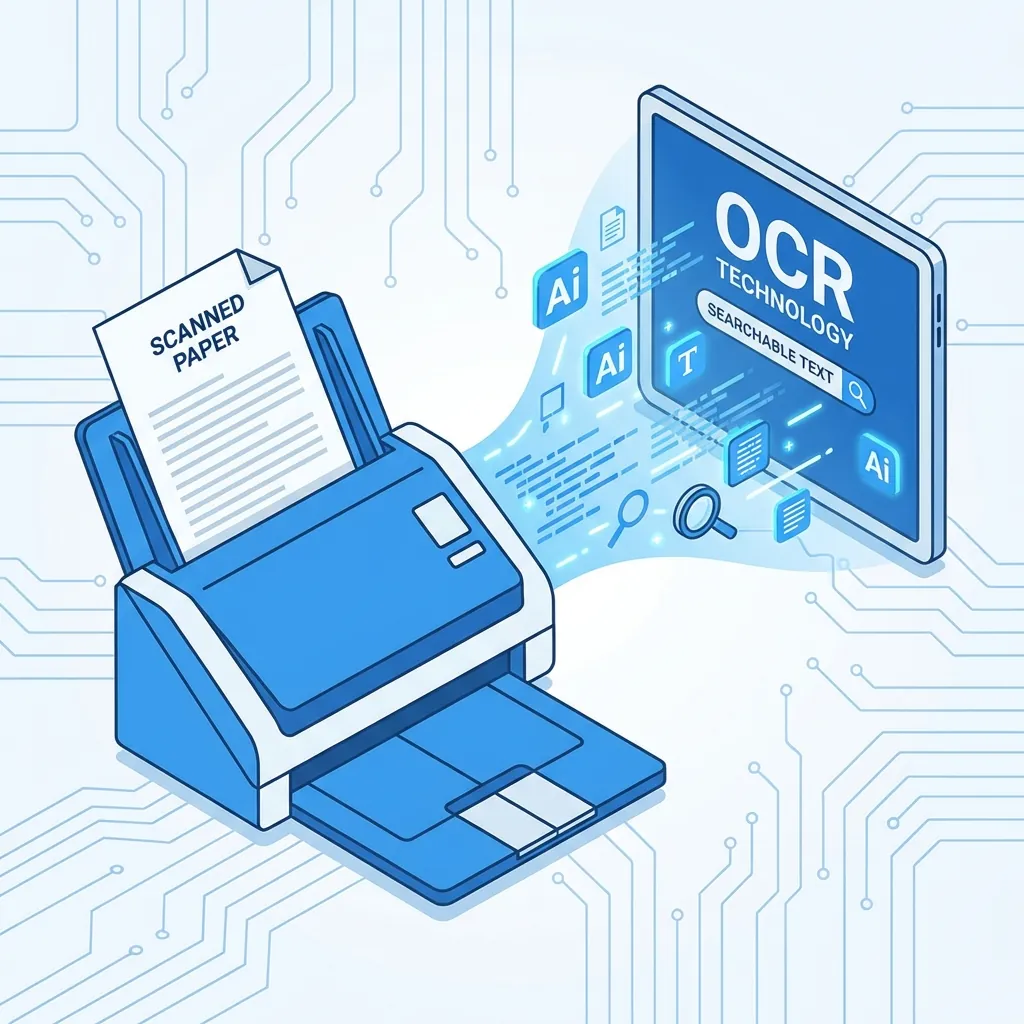
I have a box of old documents that I scanned years ago - contracts, receipts, important letters, and handwritten notes. They are PDFs technically, but completely useless for searching because they are just images of text. Every time I needed to find something, I had to open each file and manually scan through pages. Then I discovered OCR technology, and it changed everything about how I work with documents. Let me share the complete guide to making your scanned documents genuinely useful.
Understanding OCR: The Technology That Reads for You
OCR stands for Optical Character Recognition. In simple terms, it is software that looks at an image containing text and converts that image into actual, selectable, searchable, and editable text. It is essentially teaching a computer to read. The technology has been around for decades but has improved dramatically in recent years, especially for complex scripts like Arabic.
Why Scanned PDFs Are Different from Regular PDFs
This is a fundamental concept many people miss. When you scan a paper document, you create a picture of it - a photograph of text, not actual text. Your computer sees pixels, not letters. That is why you cannot select text, search for words, or copy content from a scanned PDF. It is like trying to copy text from a photograph of a newspaper.
Regular PDFs, created digitally from Word or other software, contain actual text characters that computers understand. OCR bridges this gap by analyzing the image and recreating the text digitally.
| PDF Type | Text Selectable | Searchable | Editable | File Origin |
|---|---|---|---|---|
| Native PDF | Yes | Yes | Yes | Created digitally |
| Scanned PDF | No | No | No | Scanned from paper |
| OCR-Processed PDF | Yes | Yes | Limited | Scanned then processed |
Comprehensive Guide: When You Need OCR
| Document Type | Primary OCR Benefit | Expected Accuracy | Time Savings |
|---|---|---|---|
| Scanned contracts and agreements | Full text search and verification | 95-99% | Hours per document |
| Old receipts and invoices | Data extraction for accounting | 90-95% | Eliminates manual entry |
| Photographed notes and whiteboards | Editing and organizing | 85-95% | Minutes per page |
| Faxed documents | Text copying and forwarding | 90-98% | Immediate |
| Historical documents and archives | Digitization and preservation | 80-95% | Enables research |
| Business cards | Contact information extraction | 90-98% | Seconds per card |
| Books and magazines | Searchable digital library | 95-99% | Enables full-text search |
| Handwritten notes | Basic text recognition | 70-90% | Variable |
The Critical Quality Factor: How to Get Best Results
OCR accuracy depends heavily on the quality of your source material. Think of it like asking someone to read a document - clearer text is easier to read. Here are the factors that matter most:
Resolution and DPI
DPI (Dots Per Inch) measures scan resolution. Higher DPI means more detail captured:
| DPI Setting | Best For | File Size | OCR Accuracy |
|---|---|---|---|
| 150 DPI | Quick previews | Small | Poor (70-85%) |
| 200 DPI | Simple documents | Medium | Good (85-92%) |
| 300 DPI | Standard text documents | Large | Excellent (95-99%) |
| 600 DPI | Fine print, detailed graphics | Very Large | Excellent but slower |
I recommend 300 DPI for most documents. It balances quality with file size perfectly.
Image Clarity and Alignment
A straight, well-lit scan dramatically improves results. Common problems that hurt accuracy:
- Skewed pages: Tilted text confuses the OCR engine. Many tools can auto-correct minor skew, but significant tilts cause errors.
- Poor lighting: Shadows or uneven lighting create false contrasts that are interpreted as text artifacts.
- Blur and motion: Blurry photos or scans make character boundaries unclear, leading to misrecognition.
- Page curvature: Book spines cause text to curve, distorting character shapes.
- Background patterns: Colored or patterned backgrounds interfere with text detection.
Font and Text Characteristics
Some text is inherently easier to recognize than others:
- Standard fonts like Arial, Times New Roman, and Calibri are recognized almost perfectly
- Decorative or unusual fonts may have lower accuracy
- Small text (below 8 point) can be problematic
- Degraded or faded text produces more errors
- Mixed fonts within a document are handled well by modern OCR
Language Support: Arabic and English
Language support is crucial for accurate OCR. Our tool fully supports both Arabic and English, which is essential for several reasons:
Arabic-Specific Considerations
Arabic presents unique challenges for OCR technology:
- Right-to-left reading: The text direction must be correctly identified
- Connected letters: Arabic letters change shape based on their position in a word
- Diacritical marks: Optional but important for meaning in some contexts
- Multiple font styles: Naskh, Kufi, and other calligraphic traditions
Our OCR engine is specifically optimized to handle these Arabic-specific features accurately.
Bilingual Documents
Many documents contain both Arabic and English - business documents, academic papers, and government forms often mix languages. Modern OCR handles this automatically, detecting language switches and applying appropriate recognition rules.
My Professional OCR Workflow
After processing thousands of documents, here is the systematic approach that gives me the best results:
Step 1: Prepare Your Documents
- Remove staples and paper clips to enable flat scanning
- Clean dusty or dirty pages gently before scanning
- Use a flatbed scanner rather than phone camera when possible
- Choose appropriate color mode (black and white for text-only, color for documents with images or colored text)
Step 2: Scan with Optimal Settings
- Set resolution to 300 DPI for text documents
- Enable automatic deskew if your scanner supports it
- Use appropriate brightness and contrast (avoid too dark or too light)
- Save as PDF rather than JPEG to avoid compression artifacts
Step 3: Process with OCR
- Upload to our OCR tool
- Select the correct language (Arabic, English, or both)
- Wait for processing to complete
- Download the searchable PDF
Step 4: Verify and Organize
- Open the processed file and try searching for a known word
- Spot-check a few pages for obvious errors
- Keep both original scan and OCR version for reference
- Organize files with meaningful names and folder structure
Real-World Applications and Use Cases
Legal and Contract Management
Lawyers and businesses often receive scanned contracts that need to be searchable. OCR enables quickly finding specific clauses, dates, or party names without reading entire documents.
Academic Research
Researchers digitize historical documents, old journals, and rare books. OCR makes these searchable, transforming how archives are accessed and studied.
Medical Records
Healthcare providers digitize patient records while maintaining searchability for treatment history, medication records, and test results.
Accounting and Finance
Receipts, invoices, and financial statements become searchable and easier to audit. Data can be extracted for accounting software integration.
Personal Document Management
Home users digitize and organize personal documents - tax records, insurance policies, warranties, and family records become searchable files rather than dusty boxes.
Common OCR Mistakes and How to Avoid Them
Mistake 1: Using Low Resolution
Scanning at 150 DPI to save space ruins OCR accuracy. The few megabytes saved are not worth hours of correcting errors. Always use 300 DPI minimum.
Mistake 2: Ignoring Skew
Crooked pages cause systematic errors. Take the extra seconds to align pages properly before scanning, or use software deskew features.
Mistake 3: Wrong Language Selection
OCR engines perform dramatically better when they know what language to expect. Always select the correct language before processing.
Mistake 4: Not Verifying Results
OCR is not perfect. Always spot-check results, especially for critical documents. A quick search test takes seconds and catches major problems.
Mistake 5: Discarding Original Scans
Keep original scans even after OCR processing. You may need to reprocess with better settings or different tools in the future.
Frequently Asked Questions
What is the difference between a scanned PDF and a regular PDF?
A scanned PDF is essentially an image of a document embedded in PDF format - you cannot select or search the text because the computer sees only pixels. A regular PDF contains actual text characters that are fully selectable, searchable, and editable. OCR converts scanned PDFs into searchable ones by adding a text layer.
How accurate is OCR for Arabic text?
With good scan quality (300 DPI, straight alignment, clear text), Arabic OCR accuracy typically reaches 90-98%. Complex calligraphic fonts, handwriting, or poor scan quality can reduce accuracy. Our tool is specifically optimized for Arabic script including connected letters and right-to-left text direction.
Can OCR work on handwritten documents?
OCR works best on printed text. Handwriting recognition (ICR - Intelligent Character Recognition) exists but is significantly less accurate, especially for cursive or unusual handwriting. For critical handwritten documents, always verify results carefully. Printed forms with handwritten entries work better than fully handwritten pages.
Does OCR preserve the original formatting of my document?
Most modern OCR tools create a searchable layer over the original image, preserving exact appearance. If you export to editable formats like Word, the tool attempts to recreate formatting, but complex layouts with tables, columns, and mixed content may need manual adjustment.
How long does OCR processing take?
Processing time depends on document length, resolution, and complexity. A typical 10-page document at 300 DPI takes about 30-60 seconds. Very large documents or high-resolution scans may take several minutes. Our tool processes pages in parallel for faster results.
Can I OCR a password-protected PDF?
To OCR a password-protected PDF, you must first unlock it using the password. Upload the locked file, enter the password when prompted, then proceed with OCR processing. This is a security feature, not a limitation.
What happens to confidential information during OCR processing?
Our OCR tool processes files locally in your browser - your documents never leave your device. This ensures complete privacy for sensitive documents like contracts, financial records, or medical information.
Can OCR recognize tables and preserve their structure?
Modern OCR handles tables reasonably well, recognizing cell boundaries and maintaining data alignment. However, complex nested tables or unusual layouts may require some manual adjustment. For spreadsheet data, some tools offer direct Excel export.
The Bottom Line
OCR transforms useless image files into valuable, searchable document assets. The technology has matured to the point where processing is fast, accurate, and accessible to everyone. The investment of a few minutes per document pays off exponentially when you need to find information later.
For best results: scan at 300 DPI, keep pages straight, select the correct language, and always verify results for important documents. With these habits, you will build a truly searchable document archive.
Ready to make your scanned documents searchable? Try our free OCR tool above - it works excellently with both Arabic and English text, processes files in your browser for complete privacy, and gives you searchable PDFs in seconds.
---
🔍 Make Your Scans Searchable Now
OCR Tool - Convert scanned PDFs to searchable text instantly!
Related tools:
- PDF to Word - Convert for full editing
- Compress PDF - Reduce scanned file sizes
- Edit PDF - Add annotations to scans
PDF Tools Team
A specialized team in PDF tool development and educational content. We help you work with PDF files efficiently through free tools and comprehensive tutorials.
🚀 Try Our Free PDF Tools
29 completely free tools. No registration. 100% secure processing in your browser.