Back to Blog
Convert PDF to Excel Free — Extract Tables from PDF Online
Extract tables and data from PDF to editable Excel spreadsheets. Free online tool, no registration needed.
PDF Tools TeamFebruary 11, 202612 min read
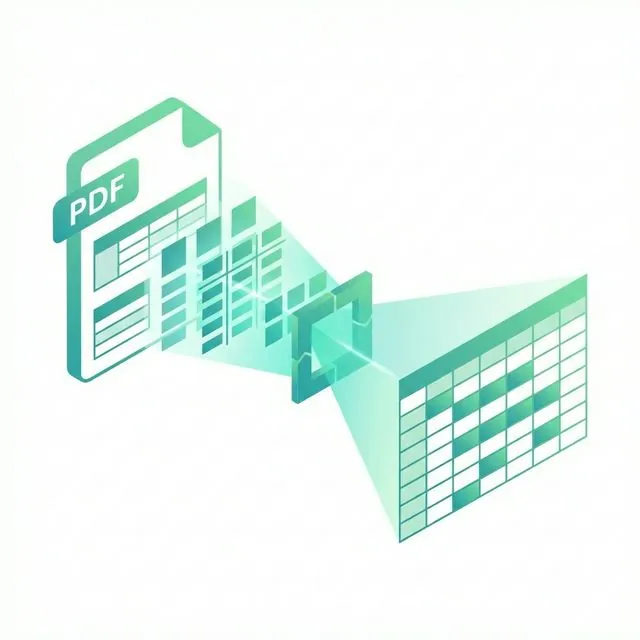
If you've ever tried to copy a table from a PDF into Excel, you know the pain. The data comes out jumbled, columns merge into one cell, numbers lose their formatting, and what should be a 5-minute task turns into an hour of manual cleanup. There's a much better way. In this comprehensive guide, you'll learn how to extract tables from PDF files to perfectly formatted Excel spreadsheets — using our free online tool that requires no registration, no software installation, and no payment.
The Problem with PDF Tables: Why Copy-Paste Doesn't Work
PDFs are designed for consistent viewing across devices — they're essentially a digital version of printed paper. This design philosophy means PDFs don't store data in tabular structures the way Excel does. When you try to copy tabular data from a PDF, you face these common problems:
- Columns merge into one cell: What appears as separate columns in the PDF becomes a single text block when pasted into Excel
- Numbers lose their formatting: Decimal points disappear, currencies drop their symbols, and percentages lose their formatting
- Headers get mixed with data rows: Column headers end up in the same cells as data values
- Row alignment breaks completely: Data from one row spills into the next, making the spreadsheet unusable
- Special characters disappear or corrupt: Unicode characters, symbols, and accented letters may not transfer correctly
- Merged cells cause chaos: Tables with merged header cells create unpredictable paste results
- Date formats change randomly: Dates may convert to serial numbers or different format standards
This is why you need a dedicated PDF to Excel converter that understands table structures, not just text.
How to Extract Tables from PDF to Excel — Step by Step
Step 1: Upload Your PDF
Open our free PDF to Excel converter and upload your file. No registration required — the tool is ready to use immediately. Drag and drop your file or click the upload button. We accept files up to 200MB.
Step 2: Automatic Table Detection
Our tool automatically scans every page of your PDF to detect tables. The detection algorithm analyzes:
- Text alignment patterns to identify column boundaries
- Horizontal and vertical lines to find table borders
- Spacing patterns between text elements
- Header row patterns to distinguish headers from data
This automatic detection works for both bordered tables (with visible grid lines) and borderless tables (where columns are defined only by text spacing).
Step 3: Download Your Excel File
Download your .xlsx file with all tables properly organized. Each detected table can be placed on a separate sheet for easy access. The Excel file is ready to open in Microsoft Excel, Google Sheets, LibreOffice Calc, or any spreadsheet application.
What Types of PDF Tables Convert Well?
Not all PDF tables are created equal. Here's what to expect based on your PDF type:
| PDF Type | Conversion Quality | Notes |
|---|---|---|
| Digital PDF with clear borders | Excellent | Best results — borders define columns precisely |
| Digital PDF without borders | Very good | Columns detected by text spacing patterns |
| Scanned PDF (high quality, 300 DPI) | Good | OCR extracts text first, then table structure |
| Scanned PDF (low quality) | Fair | May need manual cleanup due to OCR limitations |
| Complex tables with merged cells | Good | Merged cells detected but may need adjustment |
| Multi-page spanning tables | Good | Tables continuing across pages are joined |
| Nested tables | Fair | Inner tables may need manual separation |
| Tables with rotated text | Fair | Rotated headers may need correction |
Real-World Use Cases for PDF to Excel Conversion
Financial and Accounting
- Annual reports: Extract balance sheets, income statements, and cash flow data from PDF annual reports for financial modeling
- Bank statements: Convert PDF bank statements to Excel for budgeting, expense tracking, or importing into accounting software like QuickBooks or Xero
- Tax documents: Extract data from PDF tax forms and schedules for spreadsheet calculations
- Investment reports: Pull portfolio holdings, transaction histories, and performance data from brokerage PDF statements
- Audit workpapers: Extract financial data from PDF audit reports for analysis and verification
Business Operations
- Product catalogs: Convert pricing tables from supplier PDF catalogs into Excel for comparison shopping
- Invoices: Extract line items, quantities, and prices from PDF invoices for accounting reconciliation
- Purchase orders: Convert PDF purchase order details to Excel for procurement tracking
- Sales reports: Extract monthly or quarterly sales data from PDF reports for trend analysis
Research and Academic
- Research papers: Extract data tables from academic papers for meta-analysis or statistical review
- Government statistics: Convert statistical tables from government PDF publications into workable datasets
- Survey results: Extract tabulated survey data from PDF reports for further analysis
- Clinical trial data: Pull results tables from medical study PDFs for systematic reviews
Legal and Compliance
- Contract schedules: Extract payment schedules, milestone tables, and fee structures from legal agreements
- Regulatory filings: Convert tabular data from SEC filings, annual reports, and compliance documents
- Property records: Extract lot data, assessment tables, and ownership records from municipal PDFs
Advanced Tips for Better Table Extraction
Tip 1: Clean PDFs Produce Clean Excel Files
Tables in well-structured, digitally-created PDFs convert most accurately. If you created the PDF from Word or Excel originally, try to find the source file first — it will always be more accurate than any conversion.
Tip 2: One Table Per Page Works Best
When possible, isolate tables on separate pages before conversion. If your PDF has multiple tables on one page, the converter may merge them. Use our Split PDF tool to separate pages first.
Tip 3: Use OCR for Scanned Documents
Scanned PDF tables (from a scanner or camera) need OCR processing to recognize text. Our converter includes built-in OCR, but for the highest accuracy on scanned documents, run our dedicated OCR tool first.
Tip 4: Always Verify Numerical Data
After conversion, always double-check numerical values, especially decimals, percentages, and currencies. While our converter is highly accurate, financial data should always be verified against the source.
Tip 5: Check for Merged Cells
Merged cells in the PDF (common in header rows) may appear differently in Excel. Review the header rows and adjust cell merging in Excel as needed.
Tip 6: Handle Multi-Page Tables
If a table spans multiple pages in the PDF, our tool typically joins them into one continuous table in Excel. However, verify that the header row isn't repeated as data in the middle of the table.
Frequently Asked Questions About PDF to Excel Conversion
Can I extract tables from a scanned PDF?
Yes! Our tool uses OCR technology to recognize text in scanned documents. For best results, ensure your scanned PDF is at least 200 DPI resolution. Higher resolution scans (300 DPI) produce significantly better results. If the scan quality is poor, consider re-scanning the document at a higher resolution.
Will Excel formulas be preserved?
No, PDFs do not contain Excel formulas. The extracted data consists of raw values (numbers and text) exactly as they appear in the PDF. You'll need to add formulas in Excel after extraction. However, having the raw data in Excel is infinitely faster than retyping it manually.
Can I select specific tables to extract?
Our tool extracts all tables found in the PDF automatically. If you only need tables from specific pages, use our Split PDF tool first to extract those pages, then convert just those pages to Excel.
Is the service 100% free?
Yes, completely free with no limitations. No registration required, no watermarks added, no limits on file size (up to 200MB), and no limits on the number of conversions. Use it as many times as you need.
What Excel format is the output?
The output is in .xlsx format, compatible with Microsoft Excel 2007 and later, Google Sheets, LibreOffice Calc, Apple Numbers, and virtually every modern spreadsheet application.
How accurate is the table extraction?
For digital PDFs with clear formatting, accuracy is typically 95-99% for text content and table structure. Numerical data precision depends on the PDF's formatting. Scanned PDFs have slightly lower accuracy depending on scan quality and OCR performance.
Can I convert a password-protected PDF?
You'll need to remove the password protection first using our Unlock PDF tool, then convert to Excel.
Does it work on financial statements and bank statements?
Yes, financial documents are one of the most common use cases. Our tool handles balance sheets, income statements, bank transaction tables, and other financial data frequently.
PDF Table Extraction: Comparing Your Options
| Method | Cost | Accuracy | Speed | Ease of Use |
|---|---|---|---|---|
| Our free online tool | Free | Very good | Seconds | Very easy |
| Adobe Acrobat Pro | $240/year | Excellent | Seconds | Moderate |
| Manual copy-paste | Free | Very poor | Hours | Tedious |
| Manual retyping | Free | Variable | Many hours | Extremely slow |
| Python scripts (Tabula) | Free | Good | Minutes | Requires coding |
The Bottom Line: Stop Retyping PDF Data
Stop wasting hours manually retyping data from PDF tables into Excel spreadsheets. Our free PDF to Excel converter extracts tables accurately in seconds, preserving column structure, numerical formatting, and data integrity. Whether you're extracting financial data from annual reports, converting bank statements for budgeting, or pulling research data from academic papers, our tool saves you hours of tedious manual work.
Upload your PDF, let our tool detect and extract the tables, and download a clean Excel file — ready for analysis, formulas, and reporting. It's that simple, and it's completely free.
---
📊 Extract PDF Tables to Excel Now
PDF to Excel Tool — Extract tables from PDF instantly, free!
Related tools you might need:
- OCR PDF — Recognize text in scanned PDFs first
- Split PDF — Extract specific pages before converting
- PDF to Word — Convert PDF to Word instead
PDF Tools Team
A specialized team in PDF tool development and educational content. We help you work with PDF files efficiently through free tools and comprehensive tutorials.
🚀 Try Our Free PDF Tools
29 completely free tools. No registration. 100% secure processing in your browser.