Back to Blog
How to Compress PDF for Email Under 25MB — Free & Easy
Reduce PDF file size for email attachments. Free online PDF compressor that shrinks files under 25MB without losing quality.
PDF Tools TeamFebruary 11, 202612 min read
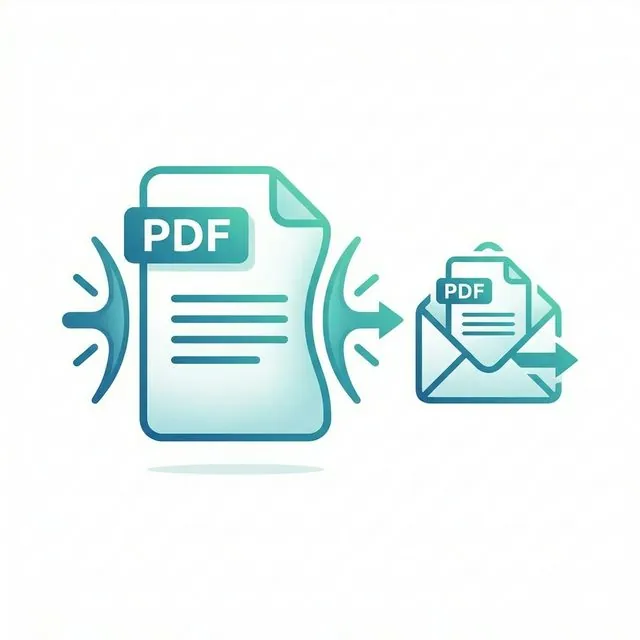
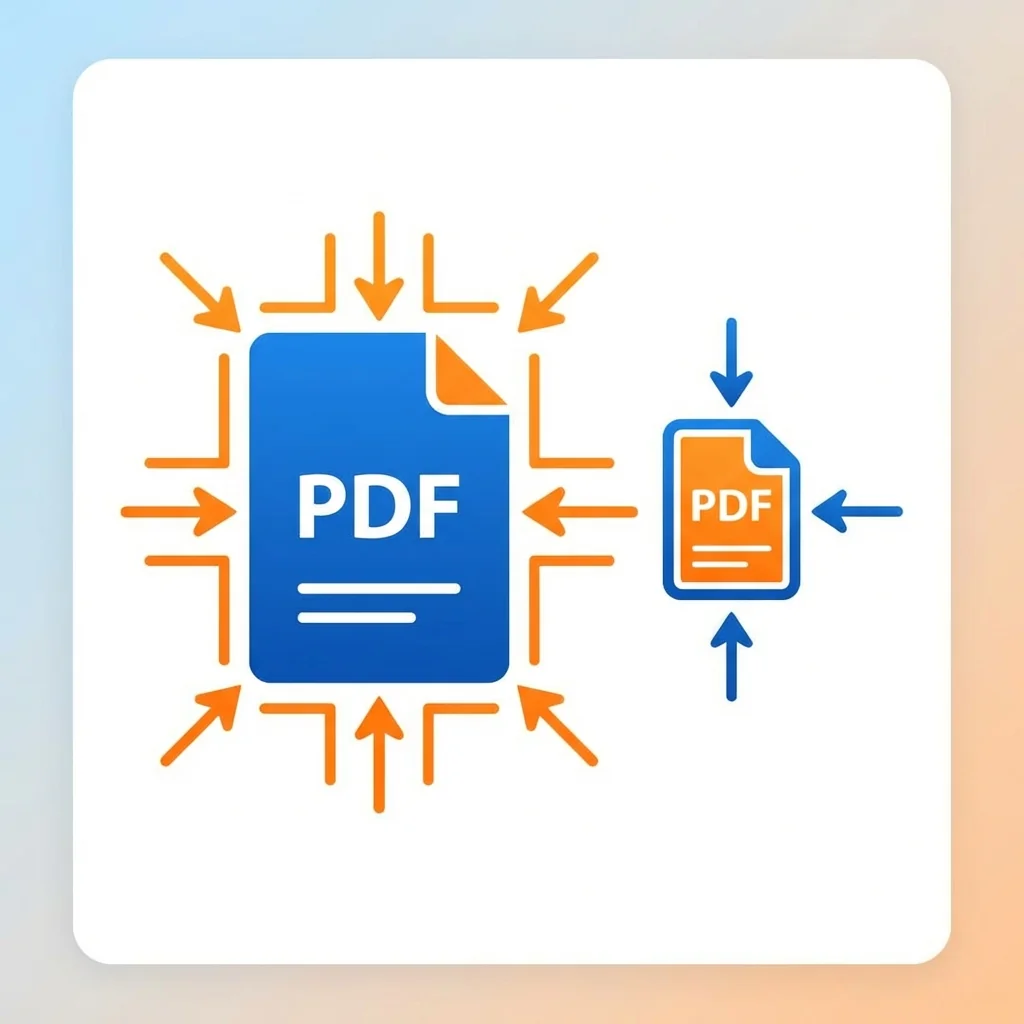
We've all been there — you try to send a PDF by email and get that dreaded 'attachment too large' error. Gmail limits attachments to 25MB, Outlook to 20MB. But your PDF is 50MB or even larger. What do you do? In this complete guide, I'll show you exactly how to compress PDF files for email — reducing size by 60-85% while keeping your documents looking professional. No software to install, no accounts to create, and no quality compromise.
Why Are PDF Files So Large? Understanding File Size
Before we compress, let's understand why PDFs become oversized. This knowledge helps you prevent large files in the future and choose the right compression settings:
Common Causes of Large PDF Files
- High-resolution images: Photos embedded at print quality (300 DPI or higher) dramatically increase file size. A single full-page photo at 300 DPI can add 3-10MB to your PDF
- Embedded fonts: Custom or decorative fonts add significant weight. Each embedded font family can add 200KB-2MB to the file
- Scanned documents: Scanned pages are essentially full-page images, making each page 1-5MB depending on scan resolution
- Complex vector graphics: Charts, diagrams, CAD drawings, and illustrations with many elements add up quickly
- Multiple pages: Even well-optimized PDFs grow large with many pages — a 100-page document with moderate graphics easily exceeds 25MB
- Redundant resources: Some PDF creation tools embed duplicate copies of fonts and images, unnecessarily inflating file size
- Layers and annotations: PDFs with multiple layers, comments, form fields, and annotations carry extra data
Email Attachment Size Limits — The Complete Reference
Every email provider has a maximum attachment size. If your PDF exceeds this limit, the email simply won't send. Here's a comprehensive table of limits for all major providers:
| Email Provider | Maximum Attachment Size | Notes |
|---|---|---|
| Gmail | 25 MB | Most popular globally |
| Outlook/Hotmail | 20 MB | Microsoft's email service |
| Yahoo Mail | 25 MB | Includes attachments and email body |
| ProtonMail | 25 MB | Encrypted email provider |
| iCloud Mail | 20 MB | Apple's email service |
| AOL Mail | 25 MB | Legacy provider |
| Zoho Mail | 20 MB | Business email solution |
| GMX Mail | 50 MB | Higher limit but less common |
| Corporate email | 10-25 MB | Varies by company IT policy |
Important: These limits apply to the total email size including all attachments and the email body itself. In practice, you should target files 1-2MB smaller than the stated limit to account for email encoding overhead.
How to Compress PDF for Email — Complete Step-by-Step Guide
Step 1: Open the Compress PDF Tool
Go to our free Compress PDF tool. No registration required — the tool loads instantly in any browser. Works on Windows, Mac, Linux, iPhone, Android, and any device with a web browser.
Step 2: Upload Your PDF
Click the upload button or drag and drop your PDF file. Our tool accepts files up to 200MB. You'll see the current file size displayed after uploading, so you know exactly how much compression is needed.
Step 3: Choose Your Compression Level
Select the compression level that best suits your needs. Each level offers a different balance between file size reduction and quality preservation:
| Compression Level | Size Reduction | Quality Impact | Best For |
|---|---|---|---|
| Minimum | 20-40% | Virtually none | Presentations, portfolios |
| Recommended | 40-70% | Barely noticeable | Most email attachments |
| Maximum | 60-85% | Slight on images | Quick sharing, archival |
For most email purposes, Recommended compression provides the ideal balance. Your text remains crisp, images look clear on screen, and the file size drops dramatically.
Step 4: Compress and Download
Click the compress button. Processing typically takes 5-15 seconds depending on file size. Once complete, you'll see the compressed file size and the percentage reduction achieved. Click download to save your smaller PDF — ready to attach to your email!
Compression Results You Can Realistically Expect
The amount of compression depends heavily on your PDF's content. Here's what we typically see across thousands of files processed daily:
| Original Size | Typical Compressed Size | Typical Reduction | Will It Email? |
|---|---|---|---|
| 100 MB | 15-25 MB | 75-85% | Yes (most providers) |
| 50 MB | 8-12 MB | 75-85% | Yes |
| 30 MB | 5-8 MB | 70-83% | Yes |
| 15 MB | 3-5 MB | 65-80% | Already under limit |
| 10 MB | 2-4 MB | 60-80% | Already under limit |
| 5 MB | 1-2 MB | 60-75% | Already under limit |
Documents with mostly text compress very well (often 80%+ reduction). Photo-heavy PDFs still compress significantly (typically 60-75%) because our tool optimizes image resolution and encoding.
Advanced Tips for Maximum PDF Compression
Tip 1: Compress Before Merging
If you're planning to merge multiple PDFs, compress each file individually first. This often produces better results than compressing the merged file, because each file's images can be optimized independently.
Tip 2: Remove Unnecessary Pages
Before compressing, delete any blank pages, draft pages, or sections the recipient doesn't need. Fewer pages means a smaller file. Use our Split PDF tool to extract only the pages you need.
Tip 3: Try Compressing Twice
Some PDFs show additional size reduction on a second compression pass. If your file is still too large after the first compression, try running it through the compressor again.
Tip 4: Consider Image Resolution Needs
If your recipient will only view the PDF on screen (not print it), images don't need to be higher than 150 DPI. Our compression tool automatically optimizes for screen viewing at the Recommended level.
Tip 5: Split Large Documents
If a single document is simply too large to compress under the email limit, consider splitting it into logical sections using our Split PDF tool and sending multiple emails.
Tip 6: Use the Right Format
If your PDF contains only text with no images, you might achieve an even smaller file by converting to a different format. However, PDF is generally the most reliable format for maintaining appearance across devices.
What Happens During PDF Compression?
Understanding what compression does helps you make informed decisions about quality trade-offs:
Image Optimization
The biggest space saver. Our tool re-encodes images using modern algorithms that reduce size while preserving visual quality. A 300 DPI image is typically downsampled to 150 DPI for screen viewing — this alone can reduce image data by 75%.
Font Subsetting
Instead of embedding entire font families (including characters you don't use), compression subsets fonts to include only the characters actually present in your document.
Stream Compression
PDF internal data streams are recompressed using more efficient algorithms (like Flate compression) to reduce overhead without any quality change.
Metadata Cleanup
Unnecessary metadata, duplicate resources, and orphaned objects are removed, trimming the file without affecting content.
Frequently Asked Questions About PDF Compression
Will compression reduce the visual quality of my PDF?
With 'Recommended' compression, the quality difference is virtually invisible on screen and in standard printing. Text always remains perfectly crisp — only embedded images may have very slight optimization. You would need to zoom in to 200%+ to notice any difference. For maximum quality preservation, choose 'Minimum' compression.
Can I compress a password-protected PDF?
You'll need to unlock the PDF first, then compress it. Use our Unlock PDF tool to remove the password protection, compress the file, then optionally re-protect it with our Protect PDF tool.
How much can I reduce my PDF file size?
Typically 60-85% reduction depending on content type. A 50MB file usually compresses to 8-12MB — well within email limits. Text-heavy documents compress more; image-heavy documents compress less but still significantly.
Is the compression truly free? No hidden costs?
Yes, 100% free. No registration required, no watermarks added, no daily limits, no 'premium upgrade' prompts. You can compress as many files as you need.
Can I compress multiple PDFs at once?
Currently, our tool processes one file at a time for optimal compression results. However, each compression only takes seconds, so processing multiple files is still very fast.
Will links and bookmarks survive compression?
Yes. All hyperlinks, bookmarks, table of contents, and interactive elements are preserved through compression. Only the visual data (mainly images) is optimized.
What if my file is still too large after compression?
Try these approaches: use 'Maximum' compression, remove unnecessary pages, split the document into smaller parts, or reduce image quality further in the source document before creating the PDF.
When NOT to Compress a PDF
Compression isn't always the right choice. Avoid compressing when:
- Professional printing: Print shops need full-resolution images (300+ DPI). Compression may reduce quality below acceptable print standards
- Legal documents requiring exact reproduction: Some legal contexts require the original, unmodified file
- Archival purposes: For long-term archival, keep the original quality and use compression only for sharing copies
- Already small files: Files under 5MB generally don't need compression for email
The Bottom Line: Never Let File Size Block Your Emails Again
Large PDF files don't have to prevent you from sending important emails. Our free compression tool reduces file sizes by 60-85% in seconds, making any PDF email-friendly without visible quality loss. Whether you're sending business proposals, scanned contracts, photo reports, or academic papers, compression ensures your files are always under the email size limit.
The process is simple: upload, choose your compression level, download, and email. No software, no accounts, no watermarks. Just smaller PDFs ready to send.
---
📧 Compress Your PDF for Email Now
Compress PDF Tool — Reduce PDF size instantly, free!
Related tools you might need:
- Merge PDF — Combine files before compressing
- Split PDF — Extract pages to reduce size
- Unlock PDF — Remove password before compressing
PDF Tools Team
A specialized team in PDF tool development and educational content. We help you work with PDF files efficiently through free tools and comprehensive tutorials.
🚀 Try Our Free PDF Tools
29 completely free tools. No registration. 100% secure processing in your browser.