How to Reduce PDF Size for Email - 7 Fast & Free Methods That Actually Work
Your PDF is too large to email? Learn 7 proven techniques to compress PDF files under 25MB without losing quality. Step-by-step guide with real examples.
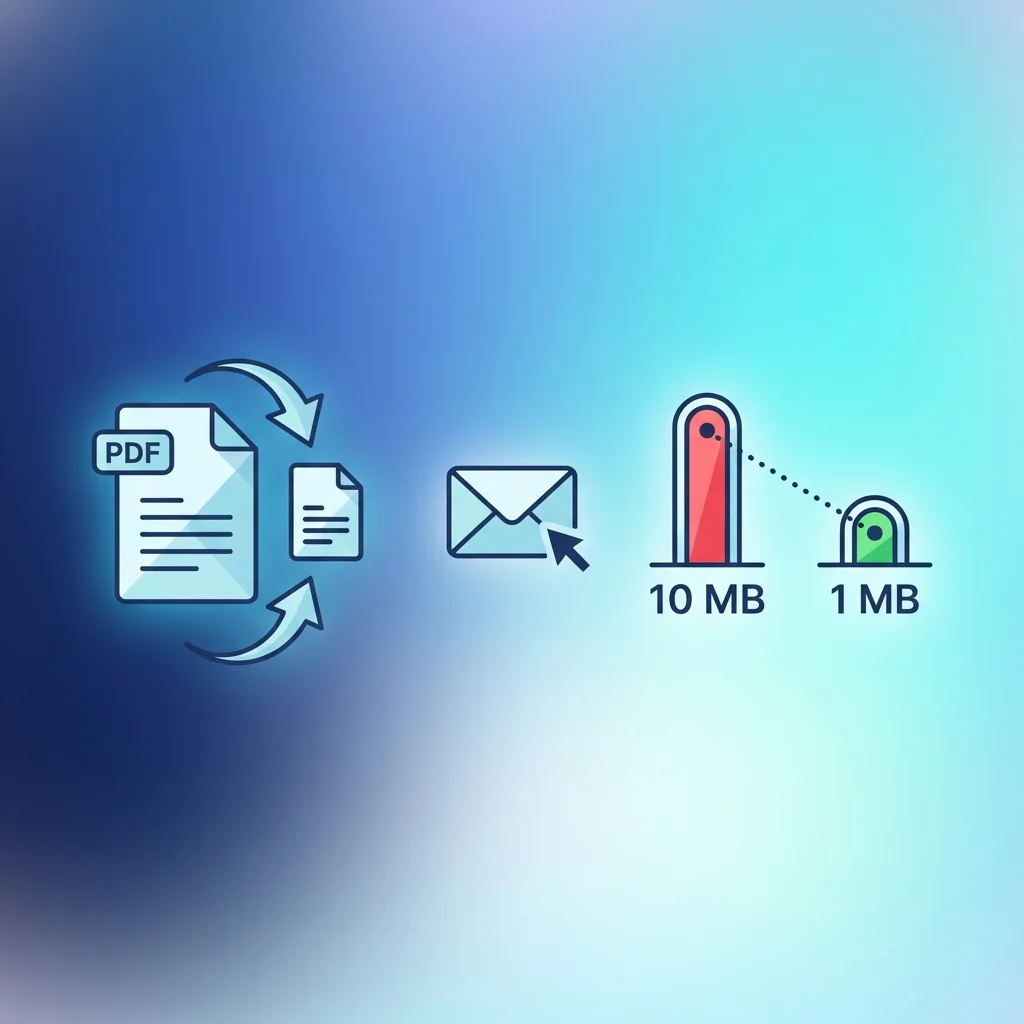
> 📧 Quick Solution: Compress Your PDF Now - Reduce file size by up to 90% in seconds, completely free!
Understanding PDF File Size: Why Documents Become Large
Common Causes of Large PDF Files
High-Resolution Images: The most common cause of bloated PDFs. A single 4000x3000 pixel photo can add 10-20MB to your document. If your PDF contains multiple high-resolution images, file size increases dramatically.
Embedded Fonts: When you create a PDF, fonts used in the document are often embedded to ensure the recipient sees the document exactly as intended. Multiple font families, especially if you use bold, italic, and regular variants, add significant size.
Unoptimized Scanned Documents: Scanning paper documents at high resolution creates extremely large files. A single letter-sized page scanned at 600 DPI can exceed 50MB.
Multimedia Content: Some PDFs include embedded videos, audio files, or interactive 3D models. These multimedia elements dramatically increase file size.
Preserved Editing Layers: PDFs created from design software like Adobe InDesign or Illustrator may contain hidden layers intended for editing. These layers add unnecessary size for documents meant only for viewing.
Excessive Metadata: Document properties, comments, form field data, and revision history all contribute to file size, sometimes significantly.
Method 1: Online PDF Compression (Fastest & Easiest)
Step-by-Step Guide
- Navigate to a reliable PDF compression tool
- Drag and drop your PDF file onto the upload area
- Select your compression level:
- Lossless: Removes only unnecessary data, quality unchanged
- Balanced: Good compression with minimal visible quality loss
- Maximum: Aggressive compression, some quality reduction
- Wait for processing (typically 5-30 seconds depending on file size)
- Download your compressed PDF
Expected Results: Most PDFs compress to 50-80% of their original size using balanced settings. Image-heavy documents often see even better results, sometimes reducing to just 10-20% of the original size.
When to Use This Method
- Quick, one-time compression needs
- Documents with unknown content composition
- When you need results in under a minute
Method 2: Optimizing Image Resolution
Understanding DPI (Dots Per Inch)
| DPI Setting | Best Use Case | Quality Level |
|---|---|---|
| 72-96 DPI | Screen viewing only | Acceptable |
| 150 DPI | Email sharing, web | Good |
| 300 DPI | Standard printing | High |
| 600+ DPI | Professional printing | Very high |
Key Insight: For email attachments, you almost never need more than 150 DPI. Most recipients will view your document on screens where higher resolution provides no benefit.
How to Reduce Image DPI
Option A: Use online compression tools that automatically optimize images
Option B: Before creating the PDF, resize images in an image editor
Option C: Use PDF editing tools to reduce image resolution within the document
Pro Tip: If your PDF contains screenshots, those can often be reduced to 72 DPI without any visible quality loss since they were created at screen resolution originally.
Method 3: Removing Unnecessary Elements
Elements You Can Safely Remove
Comments and Annotations: Unless you specifically need to share these, removing annotations can reduce file size by 5-15%.
Form Field Data: If your PDF was created from a fillable form, clearing the form data (while keeping the structure) reduces size.
Embedded Thumbnails: Some PDF creators embed thumbnail previews that can add several megabytes.
Hidden Layers: Design files often contain layers that are not visible but still stored in the file.
Document Metadata: Author information, creation dates, and edit history can be removed for smaller files.
Embedded Fonts: If you are sharing with recipients who have standard fonts installed, you can sometimes remove embedded fonts.
How to Remove Elements
Method 4: Converting to Grayscale
Size Reduction Potential
Ideal for:
- Text documents with occasional charts or diagrams
- Contracts and legal documents
- Internal reports and memos
- Documents that will be printed in black and white
Not Ideal for:
- Marketing materials and brochures
- Photo albums and portfolios
- Presentations with carefully designed color schemes
Method 5: Splitting Large Documents
When Splitting Makes Sense
- Documents with natural divisions (chapters, sections, appendices)
- When recipients do not need the entire document immediately
- For very large files (100MB+) that resist compression
- When different sections need to go to different recipients
Best Practices for Splitting
- Split at logical breakpoints (chapter endings, section dividers)
- Use clear, descriptive filenames (Report_Chapter1.pdf, Report_Chapter2.pdf)
- Include a cover email explaining the split and attachment order
- Consider including a table of contents in the first part
Method 6: Using PDF/A Format
How PDF/A Reduces Size
- Removes JavaScript and dynamic content
- Embeds all fonts (but optimizes them)
- Flattens layers and transparency
- Removes external references
Caveat: PDF/A removes interactive elements like form fields and embedded videos. Use this method only for documents that do not require these features.
Method 7: Cloud Storage Links Instead of Attachments
Benefits of Cloud Sharing
- No file size limits (most services allow files up to several gigabytes)
- Recipients receive the original, uncompressed file
- Easy version control and updates
- Works with any email provider
- Links can be set to expire for security
Popular Cloud Storage Options
| Service | Free Storage | Max File Size |
|---|---|---|
| Google Drive | 15 GB | 5 TB |
| Dropbox | 2 GB | 2 GB (free) |
| OneDrive | 5 GB | 250 GB |
| iCloud | 5 GB | 50 GB |
Best Practices for Cloud Sharing
- Set appropriate sharing permissions (view only vs. edit access)
- Consider setting an expiration date for sensitive documents
- Include clear instructions in your email about accessing the link
- Verify the recipient can access the service you are using
Quick Reference: Choosing the Right Method
| Situation | Best Method | Expected Reduction |
|---|---|---|
| Photo-heavy PDF | Image optimization | 60-80% |
| Scanned documents | OCR + compression | 40-70% |
| Text-only PDF | Basic compression | 20-40% |
| Document with forms | Remove form data | 10-30% |
| Large presentation | Split by section | N/A (multiple files) |
| Design file with layers | Flatten layers | 30-50% |
| Need maximum quality | Cloud sharing | 0% (original quality) |
Frequently Asked Questions
Will compressing a PDF affect print quality?
How do I know if my compressed PDF is still readable?
Is online PDF compression secure?
Can I undo compression after saving?
What is the smallest email-safe PDF size?
Why did my PDF get larger after OCR?
Conclusion: Start With the Simplest Solution
🚀 Compress Your PDF Right Now
- Split PDF - Break large PDFs into smaller parts
- Merge PDF - Combine documents after compression
A specialized team in PDF tool development and educational content. We help you work with PDF files efficiently through free tools and comprehensive tutorials.
🚀 Try Our Free PDF Tools
29 completely free tools. No registration. 100% secure processing in your browser.