Back to Blog
Creating Interactive PDF Forms: Complete Guide
Learn to create fillable PDF forms with text fields, checkboxes, and dropdowns.
PDF Tools TeamDecember 22, 202512 min read
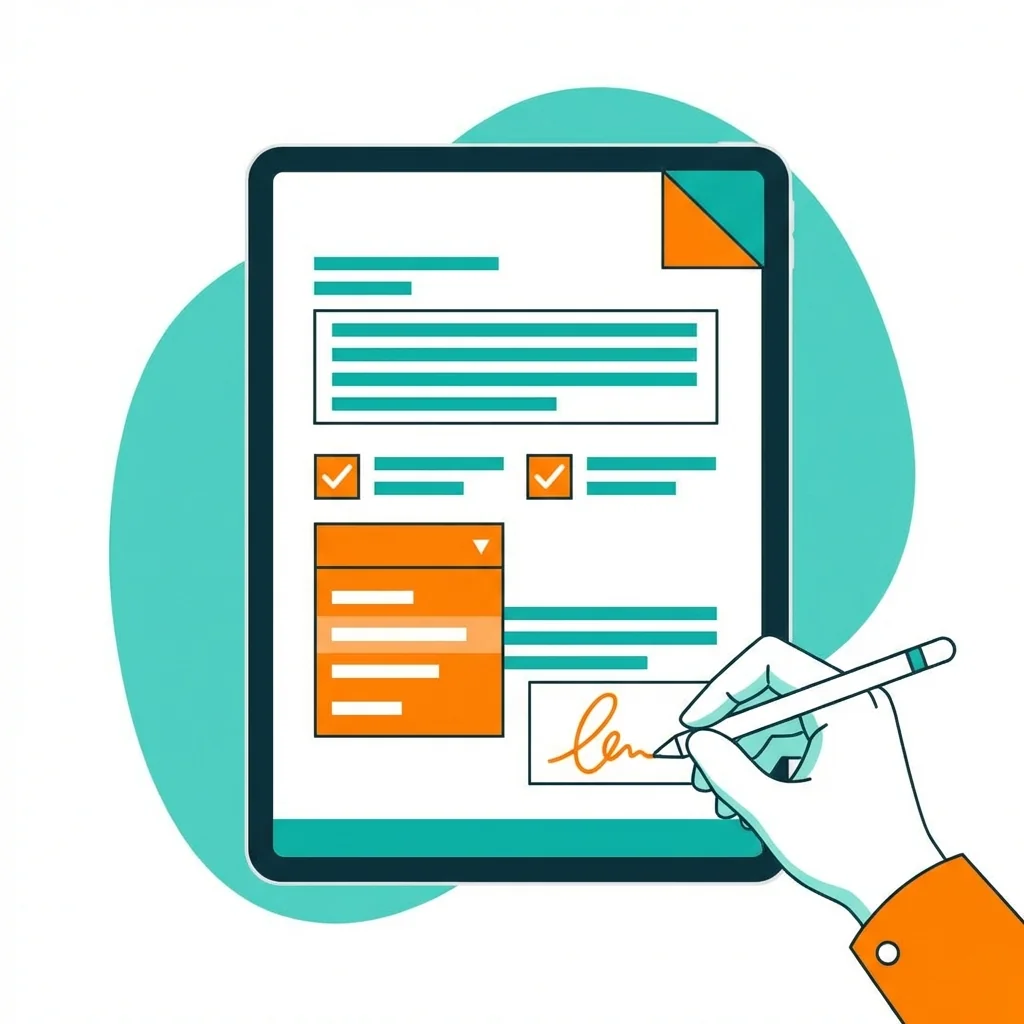
I used to create forms in Word and ask people to print, fill, and scan them back. It was a nightmare. Then I discovered interactive PDF forms, and everything changed.
Why PDF Forms Are Better
Interactive PDF forms let people fill in information directly on their computer or phone. No printing, no scanning, no illegible handwriting.
Form Types Comparison:
| Form Type | User Experience | Data Collection | Professional Look |
|---|---|---|---|
| Paper forms | Poor | Manual entry | Varies |
| Word documents | Medium | Copy/paste | Medium |
| Google Forms | Good | Automatic | Basic |
| PDF forms | Excellent | Automatic/Manual | Professional |
Types of Form Fields
| Field Type | Best For | Example Use |
|---|---|---|
| Text field | Short answers | Name, email, phone |
| Text area | Long answers | Comments, descriptions |
| Checkbox | Yes/No questions | Terms agreement |
| Radio buttons | Single choice | Gender, preferences |
| Dropdown | Many options | Country, department |
| Date picker | Date selection | Birth date, deadline |
| Signature | Approvals | Contracts, agreements |
Creating Your First Form
Step 1: Design the layout - Plan where each field goes before adding interactive elements.
Step 2: Add form fields - Use PDF form tools to place text boxes, checkboxes, and dropdowns.
Step 3: Set field properties - Name each field, set required fields, add validation.
Step 4: Test thoroughly - Fill the form yourself and check everything works.
Step 5: Set submission method - Email, submit button, or save locally.
Pro Tips for Better Forms
Make Fields Obvious
Use background colors or borders so users know where to type. An invisible text field is confusing.
Set Tab Order
Users should be able to press Tab to move between fields in a logical order.
Use Validation
If a field needs an email, set validation to check for @ symbol. If a number is required, reject text.
Provide Instructions
Add hints or placeholder text to guide users.
Common Form Mistakes
- Too many required fields - Only require what is truly necessary
- No error messages - Tell users what went wrong
- Tiny fields - Make text boxes large enough to see the input
- No save option - Let users save partial progress for long forms
The Bottom Line
PDF forms save everyone time—you get clean data, users avoid printing and scanning. Start with simple forms and gradually add advanced features as you learn.
PDF Tools Team
A specialized team in PDF tool development and educational content. We help you work with PDF files efficiently through free tools and comprehensive tutorials.
🚀 Try Our Free PDF Tools
29 completely free tools. No registration. 100% secure processing in your browser.