Back to Blog
Making PDFs Accessible for Everyone
Complete guide to creating accessible PDFs for people with disabilities using screen readers and assistive technologies.
PDF Tools TeamDecember 25, 202510 min read
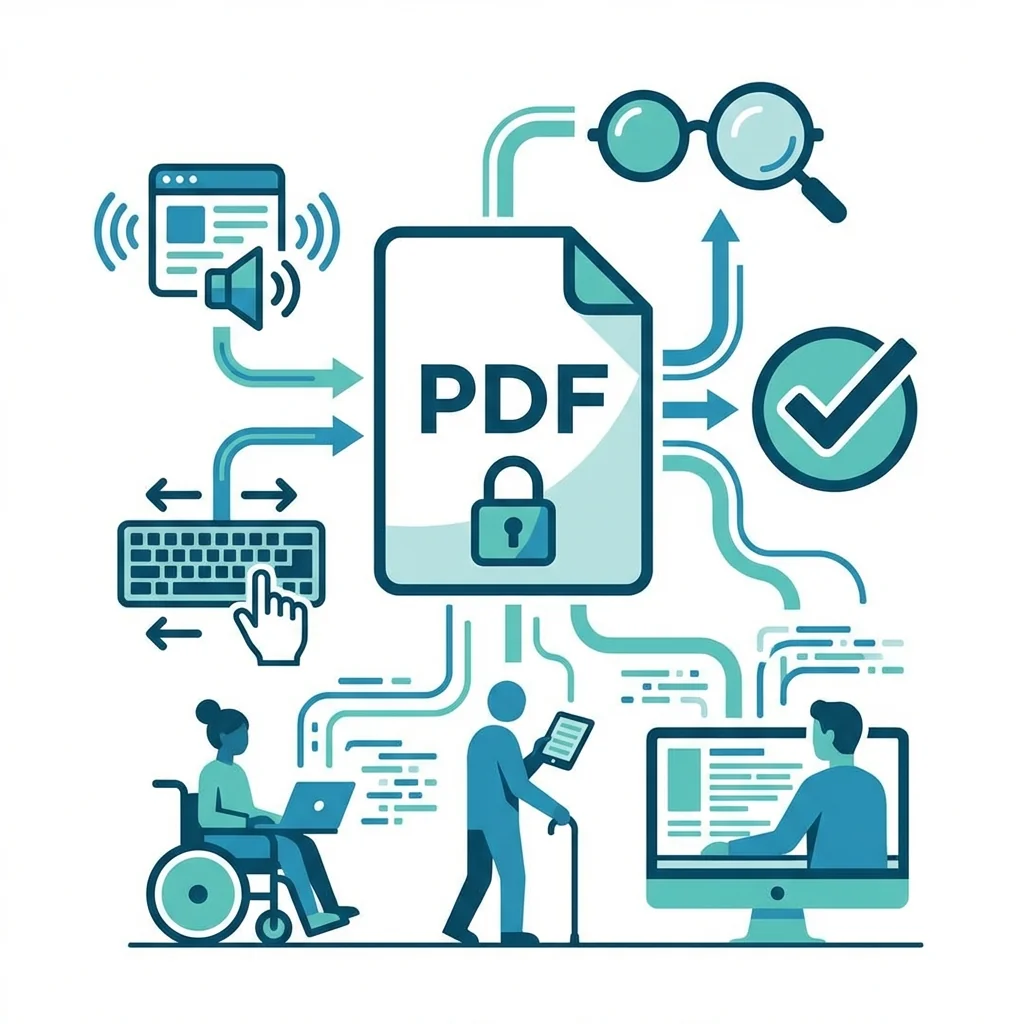
Last month, a client told me they could not use the PDF report I sent because their screen reader could not understand it. That was my wake-up call about PDF accessibility.
What is PDF Accessibility?
An accessible PDF is one that can be read and navigated by everyone, including people who use assistive technologies like screen readers, people with visual impairments, or those who cannot use a mouse.
Accessibility Features Comparison:
| Feature | Standard PDF | Accessible PDF |
|---|---|---|
| Screen reader support | Limited/None | Full support |
| Text selection | May not work | Always works |
| Navigation | Visual only | Keyboard accessible |
| Images | Decorative | Alt text included |
| Reading order | Random | Logical sequence |
Why Accessibility Matters
Beyond legal requirements (many countries mandate accessible documents), accessible PDFs are simply better documents. They are easier to search, convert to other formats, and work on any device.
Who Benefits from Accessible PDFs:
- People using screen readers (visual impairments)
- Users with mobility issues (keyboard navigation)
- Those with dyslexia (proper text structure)
- Anyone on mobile or with slow connections
- Search engines (better indexing)
Key Accessibility Elements
| Element | Purpose | How to Add |
|---|---|---|
| Document title | Identifies the document | PDF properties |
| Language setting | Helps screen readers pronounce | Document settings |
| Alt text for images | Describes visual content | Image properties |
| Proper headings (H1, H2) | Creates structure | Use heading styles |
| Reading order | Logical content flow | Tag structure |
| Link text | Describes where links go | Meaningful text |
Common Accessibility Mistakes
Mistake 1: Using Images of Text
If your PDF contains images with text instead of actual text, screen readers cannot read it. Always use real text.
Mistake 2: Missing Alt Text
Every image, chart, and graphic needs alternative text describing what it shows.
Mistake 3: Poor Color Contrast
Light gray text on white background is hard to read for many people. Use sufficient contrast ratios.
Mistake 4: Incorrect Reading Order
If your document has columns or complex layouts, the reading order might be jumbled. Test with a screen reader.
My Accessibility Checklist
Before Creating:
- Use proper heading styles in source document
- Add alt text to all images
- Use meaningful link text (not "click here")
- Ensure sufficient color contrast
After Creating PDF:
- Set document title and language
- Check reading order
- Test with screen reader
- Run accessibility checker
Frequently Asked Questions (FAQ)
What is an accessible PDF?
An accessible PDF is a document that can be read and navigated by everyone, including people using screen readers, those with visual impairments, or anyone who cannot use a mouse.
How do I know if my PDF is accessible?
Use a PDF accessibility checker (available in Adobe Acrobat or free online tools). It will identify issues like missing alt text, incorrect reading order, and missing document structure.
Do accessible PDFs work on mobile devices?
Yes, accessible PDFs work better on all devices because they have proper structure, selectable text, and logical reading order.
Is PDF accessibility legally required?
In many countries, yes. Government agencies, educational institutions, and businesses serving the public often must provide accessible documents.
Can I make an existing PDF accessible?
Yes, but it takes effort. You can add tags, alt text, and fix reading order in Adobe Acrobat. For complex documents, it may be easier to recreate from an accessible source.
What is alt text and why is it important?
Alt text (alternative text) describes images for people who cannot see them. Screen readers read this text aloud so blind users understand what the image shows.
The Bottom Line
Creating accessible PDFs takes a little extra effort, but it ensures your documents work for everyone. Start with the basics—proper headings, alt text, and document properties—and you will be ahead of most document creators.
Ready to make your PDFs accessible? Start by checking your existing documents with an accessibility checker and fix the issues it finds.
PDF Tools Team
A specialized team in PDF tool development and educational content. We help you work with PDF files efficiently through free tools and comprehensive tutorials.
🚀 Try Our Free PDF Tools
29 completely free tools. No registration. 100% secure processing in your browser.