Back to Blog
How to Merge PDF Files Free Online Without Registration
Step-by-step guide to combine multiple PDF files into one document online for free. No sign-up, no software download, no watermarks added.
PDF Tools TeamFebruary 11, 202612 min read

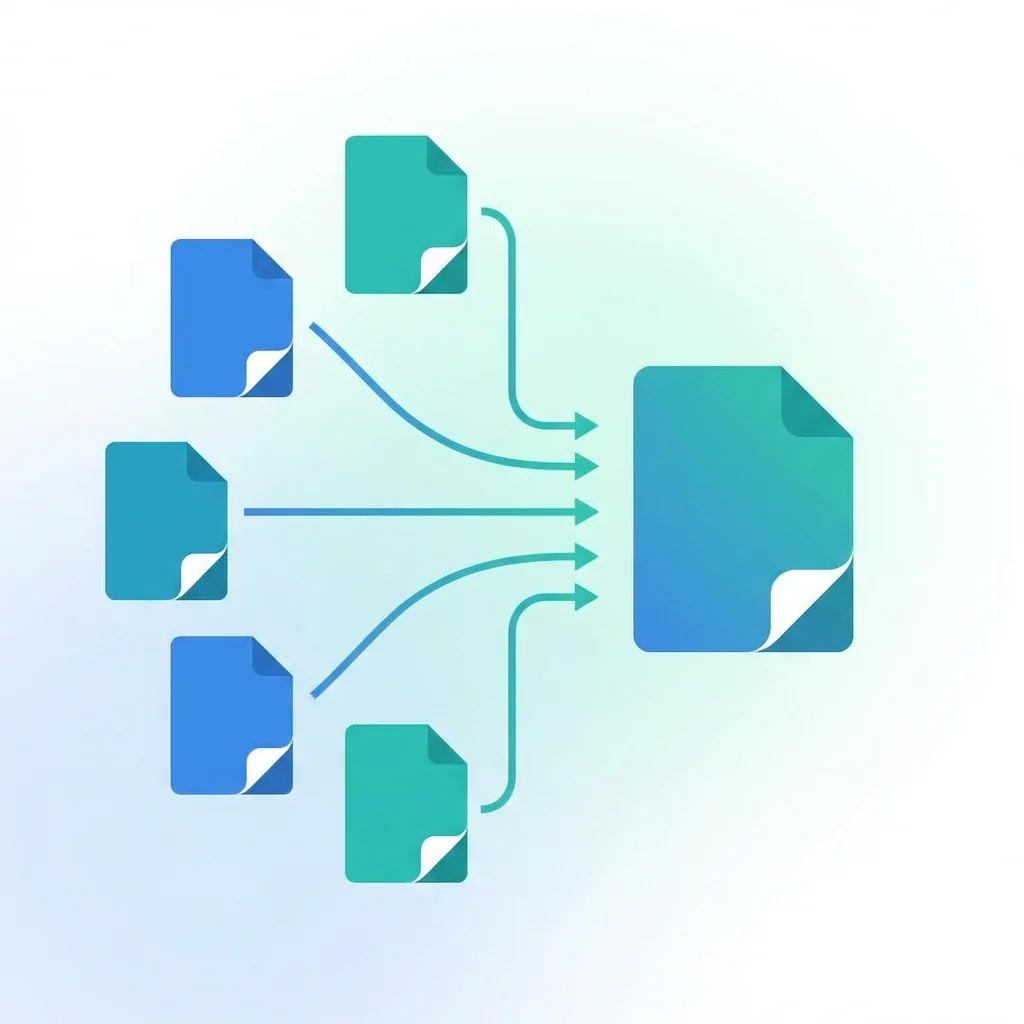
Need to merge PDF files but don't want to create an account or install software? You're in the right place. In this comprehensive guide, I'll show you how to combine multiple PDFs into one document completely free — no registration, no downloads, no hidden fees. Whether you need to merge two documents or fifty, this guide covers everything you need to know about combining PDF files online in 2026.
Why Merge PDF Files? The Complete Guide to PDF Combining
Merging PDF files is one of the most common document tasks in both personal and professional settings. Instead of sending multiple files separately — which is messy, unprofessional, and confusing for recipients — you can combine them into a single, organized document. Here are the most common scenarios where merging PDFs saves time and effort:
Professional and Business Use Cases
- Job applications: Combine your resume, cover letter, certificates, and portfolio into one file that employers can review without downloading multiple attachments
- Business proposals: Merge cover pages, executive summaries, pricing sheets, and terms and conditions into a polished proposal document
- Quarterly reports: Combine three monthly reports into a single quarterly summary for management review
- Contract packages: Merge the main contract with appendices, schedules, and supporting exhibits
- Meeting materials: Combine agendas, previous minutes, reports, and presentations into one meeting packet
Personal and Academic Use Cases
- School projects: Merge research papers, reference lists, charts, and appendices into a complete submission
- Tax documents: Combine W-2s, 1099s, receipts, and tax forms into organized filing packages
- Insurance claims: Merge claim forms with photos, receipts, and supporting documentation
- Real estate: Combine purchase agreements, inspection reports, and loan documents
- Travel documents: Merge flight confirmations, hotel bookings, and itineraries into one travel document
How to Merge PDF Files Free Online — Step by Step
Our free PDF merger tool makes combining files incredibly easy. Here's a detailed walkthrough of the entire process:
Step 1: Open the Merge PDF Tool
Visit our free Merge PDF tool. No account creation is required — just open the page and start working immediately. The tool loads instantly in any web browser, whether you're using Chrome, Firefox, Safari, Edge, or any other modern browser.
Step 2: Upload Your PDF Files
You have two ways to add your files:
- Click to upload: Click the upload button and select files from your computer, phone, or cloud storage
- Drag and drop: Simply drag your PDF files from your file manager and drop them into the upload area
You can add multiple files simultaneously. Our tool accepts files up to 200MB each, which covers even large scanned documents and image-heavy PDFs. There is no limit on the number of files you can merge in a single session.
Step 3: Arrange the File Order
After uploading, all your files appear as thumbnails. Drag and drop them to arrange them in your preferred order. The merged output will follow exactly the sequence you set on screen. This is crucial for creating professional documents where the page order matters — like placing a cover page first, followed by the table of contents, then the main content.
Step 4: Click Merge
Hit the 'Merge PDF' button. Our processing engine combines your files in seconds, even for large document collections. The speed depends on the total size of your files, but most merges complete in under 10 seconds.
Step 5: Download Your Merged PDF
Your combined PDF is ready! Click the download button to save it to your device. The output file is clean — no watermarks, no branding, no \"created by\" notices added. The file is exactly what you'd expect: all your PDFs combined in order.
Understanding PDF Merging: How It Works Behind the Scenes
When you merge PDF files, the tool doesn't simply \"paste\" the files together. Here's what actually happens:
- Page extraction: Each PDF's pages are extracted while preserving their individual properties
- Resource consolidation: Fonts, images, and other resources from all files are consolidated
- Cross-reference rebuilding: The internal cross-reference table is rebuilt to create a valid single PDF
- Metadata merging: Document properties are merged, with the first document's metadata typically taking priority
- Bookmark preservation: If your PDFs have bookmarks (table of contents), they are preserved in the merged output
This process ensures that your merged PDF is a proper, standards-compliant document — not a fragile collection of concatenated files.
Common Problems When Merging PDFs — And How to Solve Them
Problem 1: File Size Too Large After Merging
If your merged PDF is too large, compress it after merging. Our Compress PDF tool can reduce file sizes by 60-85% without visible quality loss. This is especially useful when you need to email the merged document.
Problem 2: Different Page Sizes
When merging PDFs with different page sizes (for example, A4 and Letter), the merged document preserves each page's original size. This is normally fine for digital viewing but may cause issues when printing. Solution: standardize page sizes before merging.
Problem 3: Password-Protected PDFs
If one of your PDFs is password-protected, you need to unlock it first. Use our Unlock PDF tool to remove the password, then merge normally.
Problem 4: Corrupted or Damaged PDFs
If a PDF file is corrupted, the merge tool cannot process it. Try opening the file in a PDF viewer first. If it opens correctly, re-save it as a new PDF, then try merging again.
Frequently Asked Questions About Merging PDFs
Is it really 100% free?
Yes, completely free. No hidden charges, no premium upgrades needed, no credit card required. You can merge as many files as you want, as many times as you want. There is no daily limit or session limit.
Do I need to create an account or register?
No registration required. No email verification, no password creation, no sign-up form. Just upload, merge, and download. We believe tools should be accessible to everyone without barriers.
Is it safe to upload my confidential files?
Yes. All files are processed securely using encrypted connections (HTTPS). Files are automatically deleted from our servers after processing completes. We never read, analyze, share, or store your documents. Your privacy is our top priority.
What's the maximum file size I can upload?
Each individual file can be up to 200MB. Most PDF tools limit you to 10-50MB, but we support larger files because we understand that scanned documents, photo-heavy reports, and legal filings can be substantial.
Can I merge PDF files on my phone or tablet?
Absolutely! Our tool is fully responsive and works perfectly on iPhone, Android, iPad, and any tablet. No app installation required — just use your mobile browser. The drag-and-drop interface works with touch gestures too.
Will the formatting and quality be preserved?
Yes, 100%. All text, images, links, fonts, bookmarks, annotations, and formatting from your original PDFs are preserved exactly as they are. We don't re-encode or re-compress anything — your content stays pixel-perfect.
Can I rearrange pages from different PDFs?
Yes, you can drag and drop files to change their order before merging. If you need more granular control — like rearranging individual pages — use our Organize PDF tool first, then merge.
What file formats can I merge?
Our merge tool accepts PDF files. If you need to combine Word documents, images, or other file types, convert them to PDF first using our conversion tools, then merge the resulting PDFs.
How many files can I merge at once?
There is no limit on the number of files. Whether you need to combine 2 files or 200 files, our tool handles it efficiently.
Tips and Best Practices for PDF Merging
Before Merging
- Optimize file sizes first: If your PDFs are very large (scanned documents are often 3-5MB per page), consider compressing them first. This keeps the final merged file manageable for emailing or uploading
- Name your files descriptively: Use names like '01-Cover-Page.pdf', '02-Executive-Summary.pdf' so you can easily identify and order them
- Check page orientation: Make sure all PDFs have consistent orientation (portrait or landscape) unless you intentionally want mixed orientations
- Remove unnecessary pages: Delete blank pages or irrelevant sections before merging to keep your document clean
After Merging
- Preview the result: Always scroll through the merged document to verify everything looks correct
- Check page count: Ensure the total page count matches what you expect
- Add bookmarks: If your merged document is long, consider adding bookmarks using our Edit PDF tool for easy navigation
- Compress if needed: If the merged file is too large for your needs, compress it to reduce size
Why Choose Our Free PDF Merger Over Others?
| Feature | ilovepdf-tools.site | Competitors |
|---|---|---|
| Cost | 100% Free forever | Free trials then paid plans |
| Registration | Never required | Usually required for full features |
| Watermarks | Never added to your files | Free versions often add watermarks |
| File size limit | 200MB per file | Typically 10-50MB |
| Number of files | Unlimited | Usually limited to 2-5 files |
| Mobile support | Full responsive design | Often limited on mobile |
| Processing speed | Fast, optimized servers | Varies widely |
| Privacy | Files deleted after processing | Some store files for days |
| No ads blocking content | Clean interface | Many have intrusive ads |
Alternative Methods for Merging PDFs
While our online tool is the easiest method, here are other approaches you might consider:
Using Adobe Acrobat (Paid — $240/year)
Adobe Acrobat Pro DC includes a merge feature, but requires a paid subscription. It's overkill if you only need to merge files occasionally.
Using Preview on Mac (Free, Mac only)
Mac users can merge PDFs using the built-in Preview app, but it requires dragging page thumbnails between documents, which is tedious for multiple files.
Using Command Line Tools (Technical)
Tools like PDFtk and Ghostscript can merge PDFs from the command line, but require technical knowledge and software installation.
Using Our Free Online Tool (Free, Any Device)
The simplest option: open a browser, upload files, merge, download. No installation, no payment, no technical skills needed.
Conclusion: Merge PDF Files the Easy Way
Merging PDF files doesn't have to be complicated, expensive, or require creating yet another online account. With our free online PDF merger, you can combine any number of PDFs in seconds — no registration required, no software to install, no watermarks on your output. The tool works on every device with a web browser, handles files up to 200MB, and preserves all your original formatting perfectly.
Whether you're preparing a job application, organizing business documents, or compiling a school project, our merge tool gets the job done quickly and professionally. Try it now and experience the simplest way to combine PDF files online.
---
🔗 Ready to Merge Your PDFs?
Merge PDF Tool — Combine PDF files instantly, free!
Related tools you might need:
- Compress PDF — Reduce merged file size for email
- Organize PDF — Rearrange individual pages
- Split PDF — Extract specific pages from a document
PDF Tools Team
A specialized team in PDF tool development and educational content. We help you work with PDF files efficiently through free tools and comprehensive tutorials.
🚀 Try Our Free PDF Tools
29 completely free tools. No registration. 100% secure processing in your browser.