Back to Blog
Batch Processing PDFs: The Complete Guide to Saving Hours of Work
Master batch PDF processing - learn how to handle hundreds of files at once for compression, conversion, watermarking, and more with professional techniques.
PDF Tools TeamDecember 20, 202514 min read
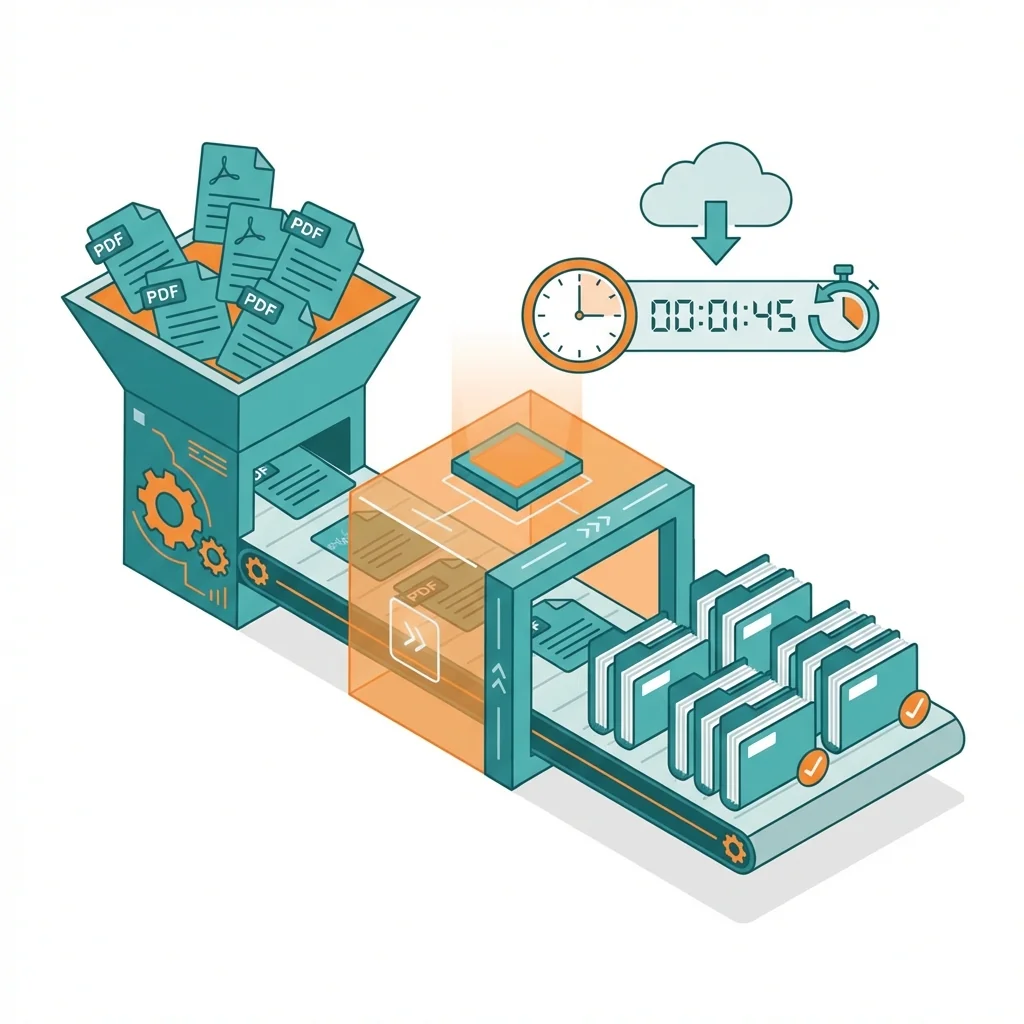
Last quarter, I needed to add our company watermark to 200 PDF reports. Doing them one by one would have taken at least 4-5 hours of tedious, repetitive work. Using batch processing, I completed the entire task in just 5 minutes. This experience transformed how I think about document workflows, and I want to share everything I have learned about batch PDF processing with you.
What is Batch Processing and Why Does It Matter?
Batch processing means applying the same action to many files at once, automatically. Instead of opening each PDF individually, making a change, saving, closing, and repeating hundreds of times, you select all files, configure your settings once, and let the software do the work while you focus on something else.
The power of batch processing becomes clear when you consider the math. If a single edit takes 2 minutes per file, processing 100 files manually takes over 3 hours. The same operation in batch mode takes 5-10 minutes. Over a year, this can mean saving hundreds of hours.
Comprehensive Time Savings Comparison
| Task | Manual Time (100 files) | Batch Processing Time | Time Saved |
|---|---|---|---|
| Add watermark | 3-4 hours | 5-10 minutes | 95%+ |
| Compress files | 2-3 hours | 5 minutes | 95%+ |
| Convert to images | 4-5 hours | 10-15 minutes | 95%+ |
| Rename files | 1-2 hours | 2 minutes | 98%+ |
| Merge groups | 3-4 hours | 15-20 minutes | 90%+ |
| Apply OCR | 5-6 hours | 30-45 minutes | 85%+ |
| Add page numbers | 2-3 hours | 5 minutes | 95%+ |
| Remove pages | 1-2 hours | 5 minutes | 95%+ |
Common Batch Operations - Complete Guide
1. Batch Compression
Compressing multiple files at once is perfect for:
- Email attachments that exceed size limits
- Archiving projects for storage efficiency
- Website uploads where file size matters
- Sharing document sets with clients or colleagues
Best practice: Choose your compression level based on use case. For email, aggressive compression is fine. For print-ready documents, use lighter compression to preserve quality.
2. Batch Watermarking
Adding watermarks to multiple documents is essential for:
- Protecting intellectual property before sharing
- Marking documents as DRAFT, CONFIDENTIAL, or APPROVED
- Adding company branding to client deliverables
- Creating consistent visual identity across documents
Pro tip: Create watermark templates you can reuse. Have separate templates for different purposes like DRAFT, CONFIDENTIAL, and branded versions.
3. Batch Conversion
Converting multiple PDFs to other formats is useful for:
- Creating image archives from PDF documents
- Converting legacy documents to editable formats
- Preparing documents for different systems
- Creating web-ready versions of print documents
4. Batch OCR Processing
Applying OCR to multiple scanned documents enables:
- Making archive documents searchable
- Digitizing paper document collections
- Enabling text extraction from scanned files
- Improving document accessibility
5. Batch Merging
Combining groups of documents is perfect for:
- Creating monthly or quarterly report compilations
- Assembling project documentation packages
- Combining chapter files into complete books
- Building training or onboarding material sets
My Professional Batch Processing Workflow
After years of working with large document sets, I have developed a reliable workflow that prevents errors and ensures consistent results:
Step 1: Organize Your Files Properly
Before processing, put all files in one folder with clear, consistent naming. This makes it easier to verify results and troubleshoot any issues. I use naming conventions like: ProjectName_DocumentType_Number.pdf
Step 2: Create a Backup First
Always copy your files before processing. Even with reliable tools, things can go wrong. Having the original files means you can start over if needed. I keep a "_Backup" folder in every project directory.
Step 3: Test on a Small Sample
Before processing all 500 files, run the batch on 3-5 files first. This lets you verify settings are correct, output quality is acceptable, and the process works as expected. It is faster to fix a problem in 5 files than 500.
Step 4: Process the Full Batch
Once your test confirms everything works, process all files. Most batch tools show progress and can handle interruptions gracefully.
Step 5: Verify Your Results
After processing, spot-check random files from the output. Open several files from different parts of the batch to ensure quality is consistent throughout.
Step 6: Document What You Did
Keep a note of the settings you used. This helps if you need to process similar files later or if someone asks how the files were modified.
Tips for More Efficient Batch Processing
Tip 1: Name Files Consistently
Batch processing works on any files, but consistent naming makes organizing results much easier. Use patterns like: Client_Project_Date_Version.pdf
Tip 2: Check Available Disk Space
Processing 100 large PDFs might need gigabytes of temporary space. Before starting, ensure your drive has enough room. A good rule is to have at least 3x the total size of your input files available.
Tip 3: Consider File Size Variations
Very large files might take longer or timeout. Consider grouping files by size and processing large files separately if needed. Some tools have specific settings for handling large files.
Tip 4: Use Appropriate Compression Settings
Different use cases need different settings. Files for print need higher quality than files for email. Batch tools usually let you save setting profiles for different scenarios.
Tip 5: Schedule Large Batches
If processing hundreds or thousands of files, schedule the job to run overnight or during lunch. This avoids slowing down your computer during productive hours.
Tip 6: Keep Processing Logs
When processing large batches, keep a log of what was processed, when, and with what settings. This is invaluable for troubleshooting and auditing.
Handling Special Batch Scenarios
Scenario: Mixed Language Documents
When batch processing documents in multiple languages (especially with OCR), process them in separate batches by language for best results.
Scenario: Password-Protected Files
If some files in your batch are password-protected, you will need to remove protection first or use a tool that supports batch password entry.
Scenario: Mixed File Sizes
For batches with wildly different file sizes (like 100KB files mixed with 100MB files), consider processing in groups sorted by size for more predictable completion times.
Scenario: Quality-Critical Documents
For documents where quality cannot be compromised (like print-ready materials), test extensively on samples before full batch processing.
Frequently Asked Questions
How many files can I batch process at once?
It depends on your tool and computer. Most tools handle hundreds of files easily. For thousands of files, you might want to split into smaller batches to avoid memory issues and make verification easier.
Will batch processing affect file quality?
Not inherently. Batch processing applies the same operation that would happen with individual processing. The key is choosing appropriate settings for your quality requirements.
Can I undo batch processing?
Only if you kept backups. Most batch operations modify files permanently. This is why the backup step is critical.
How long does batch processing take?
It varies widely depending on the operation, file sizes, and your computer. Simple operations like renaming are almost instant. Complex operations like OCR can take seconds per page.
Can I batch process files in different folders?
Most tools prefer files in one location, but many can process multiple folders or maintain folder structure. Check your specific tool is capabilities.
What happens if one file fails during batch processing?
Most good batch tools continue processing other files and report failures at the end. You can then fix or reprocess just the failed files.
Can I combine multiple batch operations?
Some advanced tools allow chaining operations (like compress, then watermark, then convert). Others require running separate batches for each operation.
Common Batch Processing Mistakes to Avoid
Mistake 1: Not Making Backups
The most common and costly mistake. Always backup before batch processing. There is no undo for batch operations.
Mistake 2: Skipping the Test Run
Testing on a few files first catches problems early. A few minutes of testing can save hours of reprocessing.
Mistake 3: Using Wrong Settings for the Use Case
High compression for print-ready files, no compression for email files - both waste resources. Match settings to purpose.
Mistake 4: Not Verifying Results
Assuming success without checking. Always spot-check output files to confirm the batch worked correctly.
Mistake 5: Processing Without Organization
Starting with messy, disorganized files makes it hard to verify results and troubleshoot problems.
The Bottom Line
Batch processing is a massive time saver for anyone working with multiple PDFs regularly. The initial investment in learning the tools and developing good workflows pays off quickly. What once took hours now takes minutes, freeing you for more valuable work.
The key principles are simple: organize first, backup always, test before full processing, and verify results. Follow these and you will process documents like a professional.
Ready to start batch processing? Gather your files, make a backup, and try our batch tools above. Start with a simple operation like compression or watermarking to see the time savings for yourself.
PDF Tools Team
A specialized team in PDF tool development and educational content. We help you work with PDF files efficiently through free tools and comprehensive tutorials.
🚀 Try Our Free PDF Tools
29 completely free tools. No registration. 100% secure processing in your browser.